Developer Guide
- Acknowledgements
- Setting up, getting started
- Design
- Implementation
- Documentation, logging, testing, configuration, dev-ops
-
Appendix: Requirements
- Product scope
- User stories
-
Use cases
- Use case: UC01 - Getting help
- Use case: UC02 - Add a contact
- Use case: UC03 - Edit a contact
- Use case: UC04 - Delete a contact
- Use case: UC05 - Add tags to an existing contact
- Use case: UC06 - Remove tags from a contact
- Use case: UC07 - Clearing all tags of a type from a contact
- Use case: UC08 - Listing all contacts
- Use case: UC09 - Sorting contacts
- Use case: UC10 - Search contacts
- Use case: UC11 - Undo previous action
- Use case: UC12 - Navigating command history
- Use case: UC13 - Clearing all contacts
- Use case: UC14 - Exiting
- Non-Functional Requirements
- Glossary
- Appendix: Instructions for manual testing
- Appendix: Effort
- Appendix: Planned Enhancements
Acknowledgements
- Libraries used: JavaFX, Jackson, JUnit5
- This project is based on the AddressBook-Level3 project created by the SE-EDU initiative.
Setting up, getting started
Refer to the guide Setting up and getting started.
Design
 Tip: The
 .puml files used to create diagrams are in this document docs/diagrams folder. Refer to the PlantUML Tutorial at se-edu/guides to learn how to create and edit diagrams.
Architecture
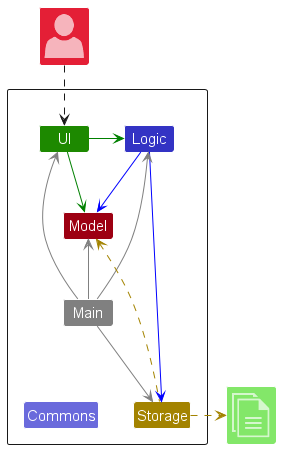
The Architecture Diagram given above explains the high-level design of the App.
Given below is a quick overview of main components and how they interact with each other.
Main components of the architecture
Main (consisting of classes Main and MainApp) is in charge of the app launch and shut down.
- At app launch, it initializes the other components in the correct sequence, and connects them up with each other.
- At shut down, it shuts down the other components and invokes cleanup methods where necessary.
The bulk of the app’s work is done by the following four components:
-
UI: The UI of the App. -
Logic: The command executor. -
Model: Holds the data of the App in memory. -
Storage: Reads data from, and writes data to, the hard disk.
Commons represents a collection of classes used by multiple other components.
How the architecture components interact with each other
The Sequence Diagram below shows how the components interact with each other for the scenario where the user issues the command delete 1.
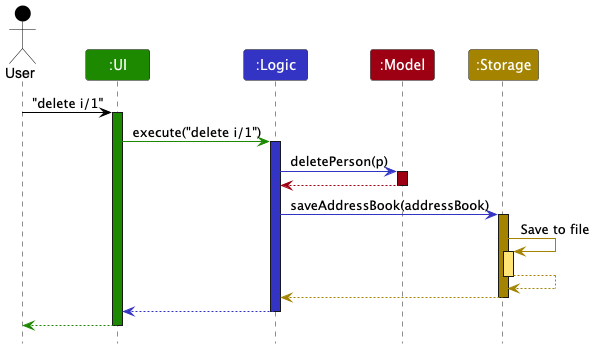
Each of the four main components (also shown in the diagram above),
- defines its API in an
interfacewith the same name as the Component. - implements its functionality using a concrete
{Component Name}Managerclass (which follows the corresponding APIinterfacementioned in the previous point.
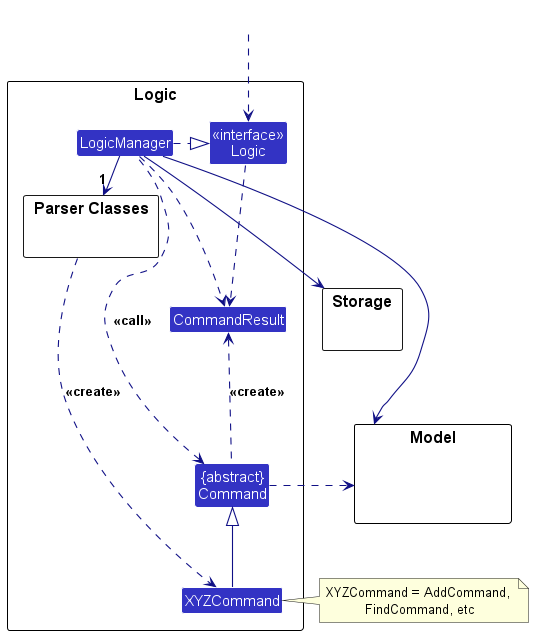
For example, the Logic component defines its API in the Logic.java interface and implements its functionality using the LogicManager.java class which follows the Logic interface. Other components interact with a given component through its interface rather than the concrete class (reason: to prevent outside component’s being coupled to the implementation of a component), as illustrated in the (partial) class diagram below.
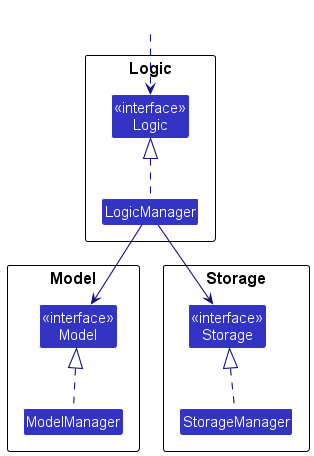
The sections below give more details of each component.
UI component
The API of this component is specified in Ui.java
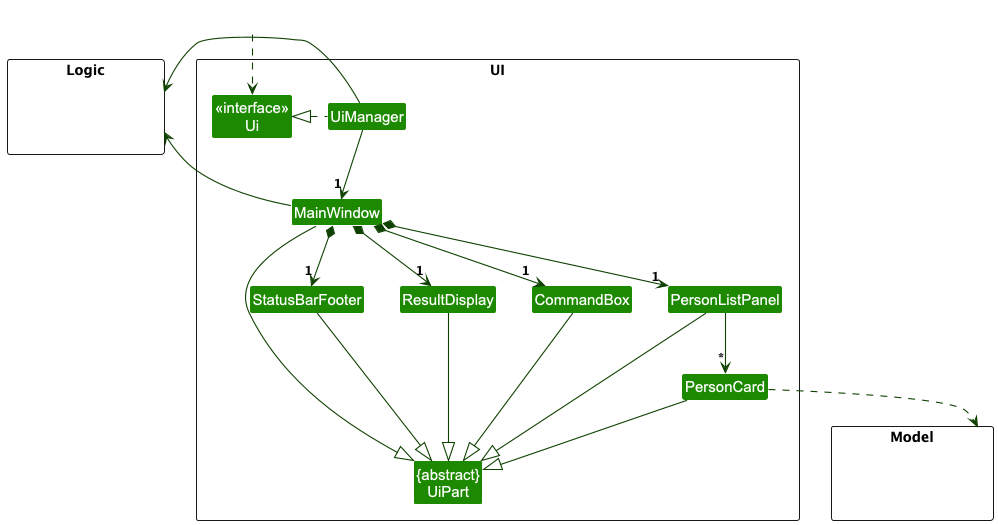
The UI consists of a MainWindow that is made up of parts e.g.CommandBox, ResultDisplay, PersonListPanel, StatusBarFooter etc. All these, including the MainWindow, inherit from the abstract UiPart class which captures the commonalities between classes that represent parts of the visible GUI.
The UI component uses the JavaFX UI framework. The layout of these UI parts are defined in matching .fxml files that are in the src/main/resources/view folder. For example, the layout of the MainWindow is specified in MainWindow.fxml
The UI component,
- executes user commands using the
Logiccomponent. - listens for changes to
Modeldata so that the UI can be updated with the modified data. - keeps a reference to the
Logiccomponent, because theUIrelies on theLogicto execute commands. - depends on some classes in the
Modelcomponent, as it displaysPersonobject residing in theModel.
Logic component
API : Logic.java
Here’s a (partial) class diagram of the Logic component:
The sequence diagram below illustrates the interactions within the Logic component, taking execute("delete 1") API call as an example.
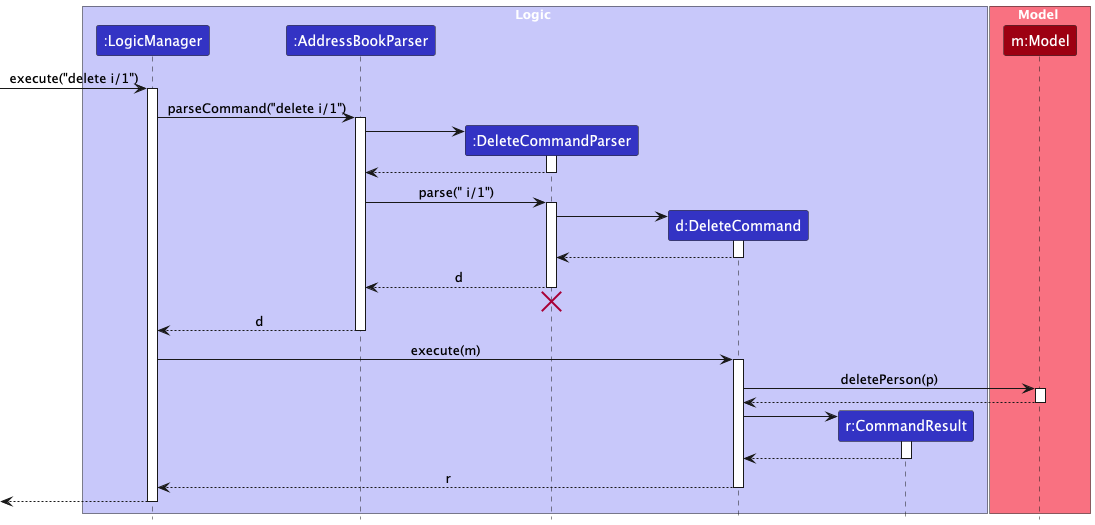
 Note: The lifeline for
 DeleteCommandParser should end at the destroy marker (X) but due to a limitation of PlantUML, the lifeline continues till the end of diagram.
How the Logic component works:
- When
Logicis called upon to execute a command,LogicManagerpasses the user input toAddressBookParser. -
AddressBookParseridentifies the command word and delegates to the corresponding parser (e.g.,DeleteCommandParser) to construct aCommandobject. -
LogicManagerexecutes the command against theModel. - If the command is undoable (
command.isUndoable()),LogicManagerpushes it to an internal undo history stack. - If the command is
undo,LogicManagerhandles it directly by invokingundo(model)on the most recent undoable command in that history stack. More details on the undo feature are provided in the Undo feature section under Implementation. - After command execution,
LogicManagerpersists changes throughStorage, then returns aCommandResultto the caller.
Here are the other classes in Logic (omitted from the class diagram above) that are used for parsing a user command:
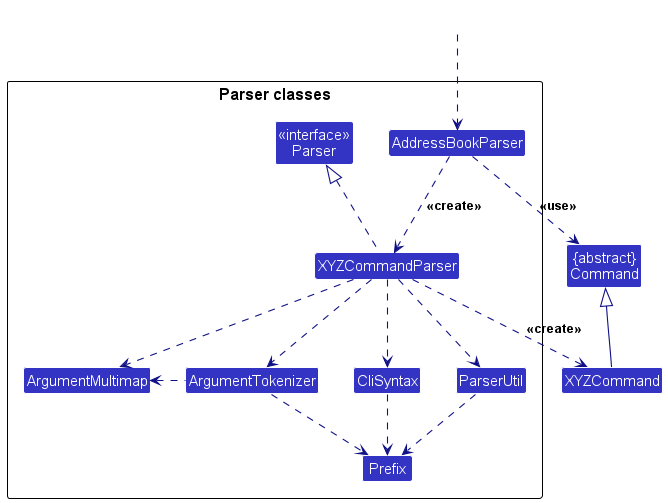
How the parsing works:
-
AddressBookParserroutes each command to anXYZCommandParser(XYZis a placeholder for the specific command name, e.g.,AddCommandParser) that validates input and creates anXYZCommandobject. - Commands with no parameters (
list,clear,exit,undo) are validated directly inAddressBookParser; any extra arguments are rejected. - Most command parsers use
ArgumentTokenizerandParserUtilhelpers to enforce:- required/optional prefixes,
- duplicate-prefix checks for single-valued fields,
- detection of invalid or unexpected prefixes,
- command-specific constraints (e.g., exactly one of
tr/ortc/ortg/forcleartag).
- All
XYZCommandParserclasses implement theParserinterface so that they can be treated similarly where possible e.g, during testing.
Model component
API : Model.java
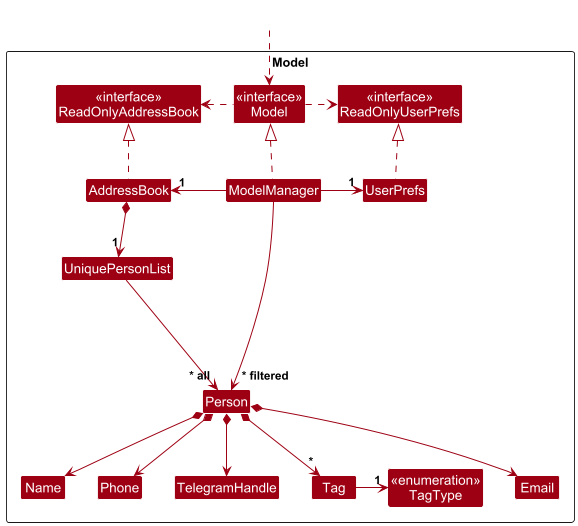
The Model component,
- stores the address book data i.e., all
Personobjects (which are contained in aUniquePersonListobject). - A person is considered a duplicate if another person already has the same email, or the same Telegram handle ignoring case.
- stores the currently ‘selected’
Personobjects (e.g., results of a search query) as a separate filtered list which is exposed to outsiders as an unmodifiableObservableList<Person>that can be ‘observed’ e.g. the UI can be bound to this list so that the UI automatically updates when the data in the list change. - stores a
UserPrefobject that represents the user’s preferences. This is exposed to the outside as aReadOnlyUserPrefobject. - does not depend on any of the other three components (as the
Modelrepresents data entities of the domain, they should make sense on their own without depending on other components)
Note: An alternative (arguably, a more OOP) model is given below. It has a Tag list in the AddressBook, which Person references. This allows AddressBook to only require one Tag object per unique tag, instead of each Person needing their own Tag objects.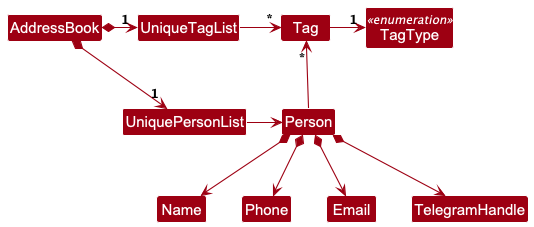
Storage component
API : Storage.java
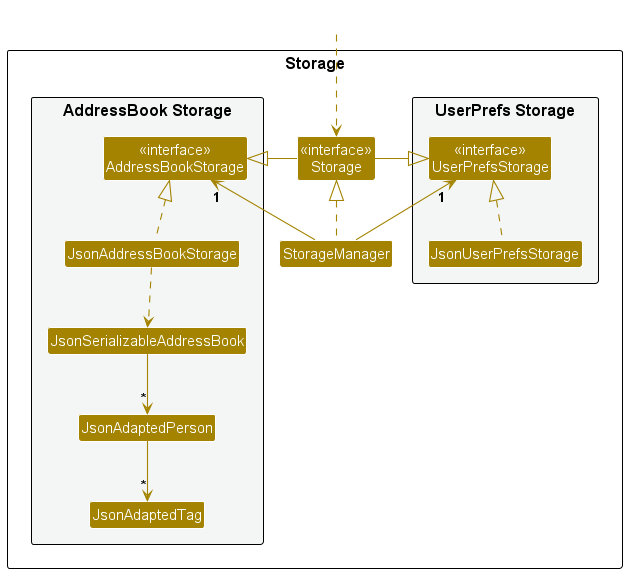
The Storage component,
- can save both address book data and user preference data in JSON format, and read them back into corresponding objects.
- inherits from both
AddressBookStorageandUserPrefsStorage, which means it can be treated as either one (if only the functionality of only one is needed). - depends on some classes in the
Modelcomponent (because theStoragecomponent’s job is to save/retrieve objects that belong to theModel)
Adapter pattern for JSON serialization
The Storage component uses an adapter pattern to bridge between the domain model and JSON representation. Three adapter classes handle the conversion:
-
JsonSerializableAddressBook— wraps the entire address book for serialization; itstoModelType()method converts back to aReadOnlyAddressBook, checking for duplicate persons in the process. -
JsonAdaptedPerson— represents a singlePersonin JSON form. The fieldsphoneandtelegramHandleare optional (nullable);nameandemailare required.toModelType()validates each field and throwsIllegalValueExceptionif any value is invalid. -
JsonAdaptedTag— represents a singleTag, storing bothtagNameandtagType.
JSON data format
Data is stored in two JSON files:
-
data/addressbook.json— contact list:{ "addressbook": { "persons": [ { "name": "Alex Yeoh", "phone": "87438807", "email": "alexyeoh@example.com", "telegramHandle": "alexyeoh", "tags": [{ "tagName": "cs2103t", "tagType": "COURSE" }] } ] } } -
preferences.json— GUI window size/position and the address book file path:{ "guiSettings": { "windowWidth": 740.0, "windowHeight": 574.0, "windowCoordinates": { "x": 100, "y": 100 } }, "addressBookFilePath": "data/addressbook.json" }
Error handling on startup
When CampusBridge starts, it attempts to read the address book file and handles three cases:
- File not found — sample data is loaded and the file is created on the next save or exit.
- File is malformed or contains invalid data — an empty address book is used and a warning is logged.
- File is valid — data is loaded normally.
Common classes
Classes used by multiple components are in the seedu.address.commons package.
Implementation
This section describes some noteworthy details on how certain features are implemented.
Add feature
Implementation
The add command is implemented using AddCommandParser and AddCommand.
When the user enters an add command, AddressBookParser delegates the input to AddCommandParser. AddCommandParser tokenizes the input using only the prefixes supported by add: n/, e/, p/, and h/.
The parser enforces the following rules:
Field requirements
-
n/NAMEande/EMAILare compulsory. - Email is compulsory because the product assumes academic contacts are typically reachable by email, and email serves as the primary stable identifier for duplicate detection.
-
p/PHONEandh/TELEGRAM_HANDLEare optional.
Input handling
- Values are trimmed before validation.
- Repeated single-valued prefixes are rejected.
- Any non-empty preamble is rejected.
- Any unexpected slash-prefixed token is rejected as extra input. This includes prefixes from other commands such as
t/,tr/,tc/,tg/,o/, andr/, as well as unknown prefixes such asx/.
Validation
-
Namevalidation allows only letters, numbers, spaces, and these symbols:().-,'. - Other special characters are intentionally rejected. In particular,
/is not supported because/is used by the CLI prefix-based syntax and may create parsing ambiguity. If a real-world name uses/, users should enter a supported substitute such as-instead (e.g.D/OasD-O).
After tokenization, AddCommandParser uses ParserUtil to validate and convert each supplied value into the corresponding model type. It then constructs a Person object and returns an AddCommand.
The sequence diagram below illustrates the interactions within the Logic component for a typical successful add command.
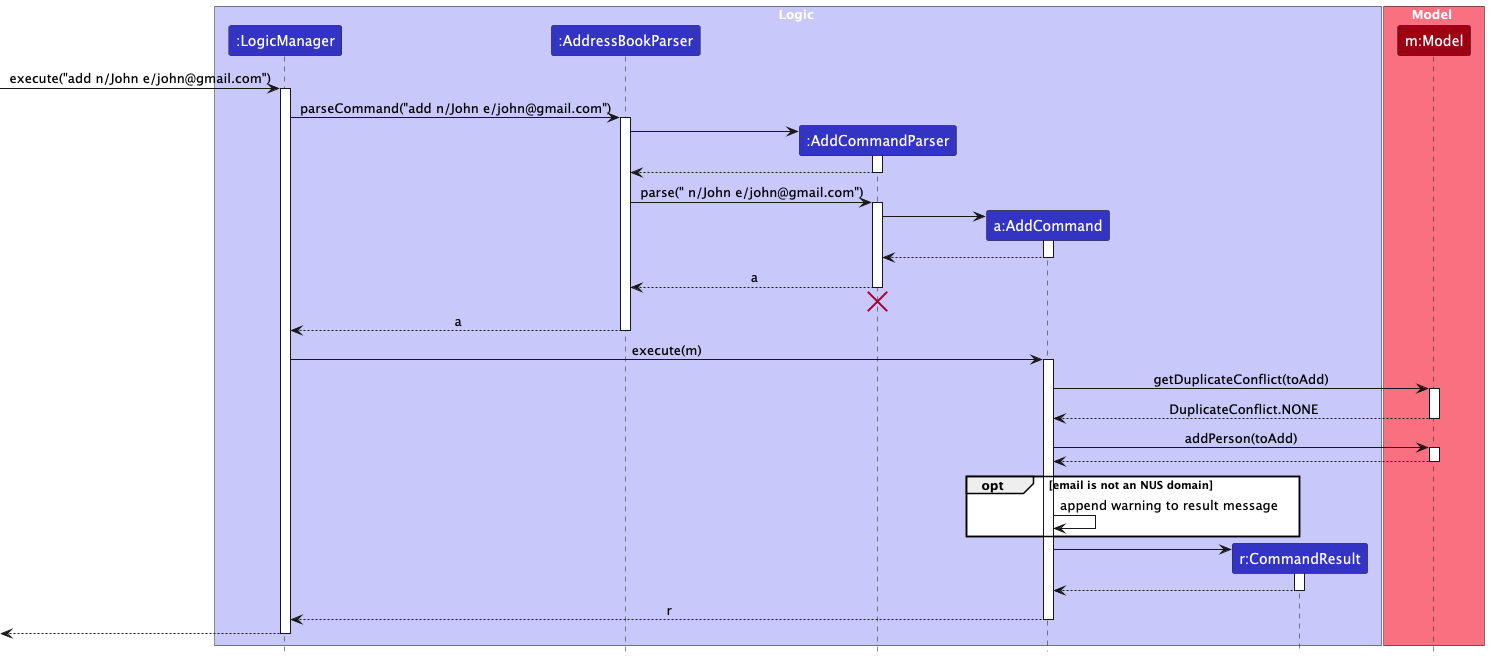
When AddCommand executes, it first checks for duplicate conflicts using model.getDuplicateConflict(toAdd). If a duplicate email, duplicate Telegram handle, or both are detected, the command fails. Otherwise, the person is added to the model and a CommandResult is returned. If the added person’s email is not an NUS-domain email, the success message also includes a warning.
AddCommand is undoable. Undoing an add removes the previously added person, unless that person no longer exists in the model.
Duplicate detection
Duplicate detection for add is based on Person#isSamePerson(...).
Two persons are considered the same person if they have:
- the same email, or
- the same non-null Telegram handle.
Emails and Telegram handles are both treated case-insensitively for duplicate detection.
This identity rule is used by UniquePersonList when adding and updating persons. As a result, the add command rejects contacts that duplicate either an existing email or an existing Telegram handle.
Undo feature
Implementation
The undo feature is implemented using the Command pattern, where each undoable command encapsulates its own undo logic. The overall undo process is managed by LogicManager.
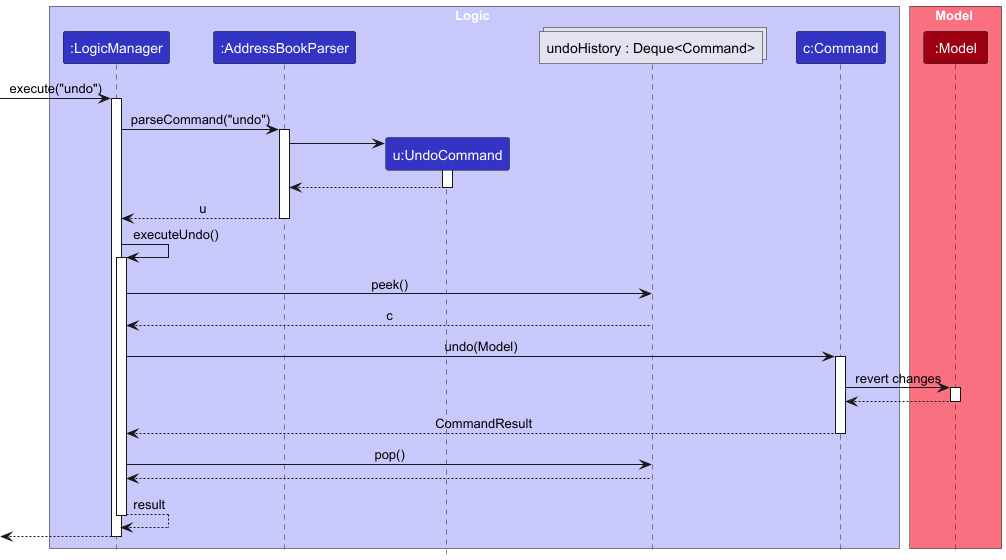
When an undoable command is executed, it is added to an internal stack (undoHistory : Deque<Command>) maintained by LogicManager.
When the undo command is invoked, LogicManager retrieves the most recent command from undoHistory using peek(). The undo(Model) method of that command is then executed to revert its effects. If the undo operation is successful, the command is removed from the stack using pop().
This design ensures that each command is responsible for reversing its own changes, providing flexibility and adhering to the Command pattern.
Undo preserves the model’s current filtered view instead of resetting it to show all contacts. As a result, when undo restores contacts after commands such as delete, edit, clear, tag, untag, or cleartag, some restored contacts may remain hidden if they do not satisfy the active filter. The command feedback explicitly informs the user of this behavior.
The following sequence diagram illustrates how the undo operation is executed:
The following class diagram shows the simplified structure of the undo feature:
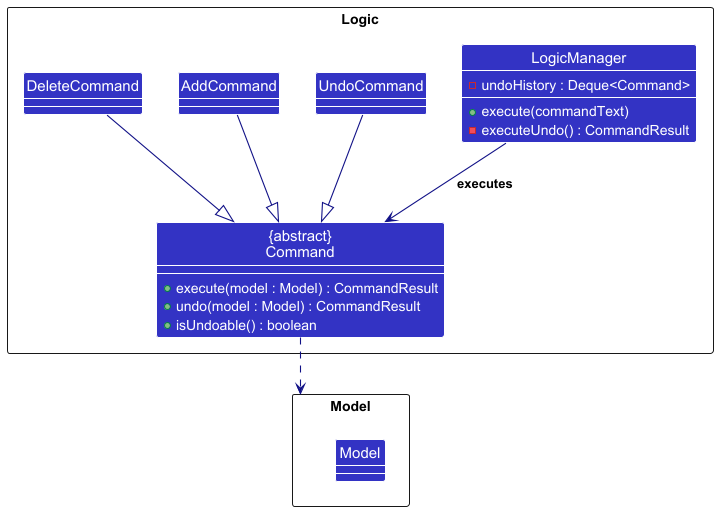
The following Activity diagram illustrates the control flow of command execution in the undo feature.
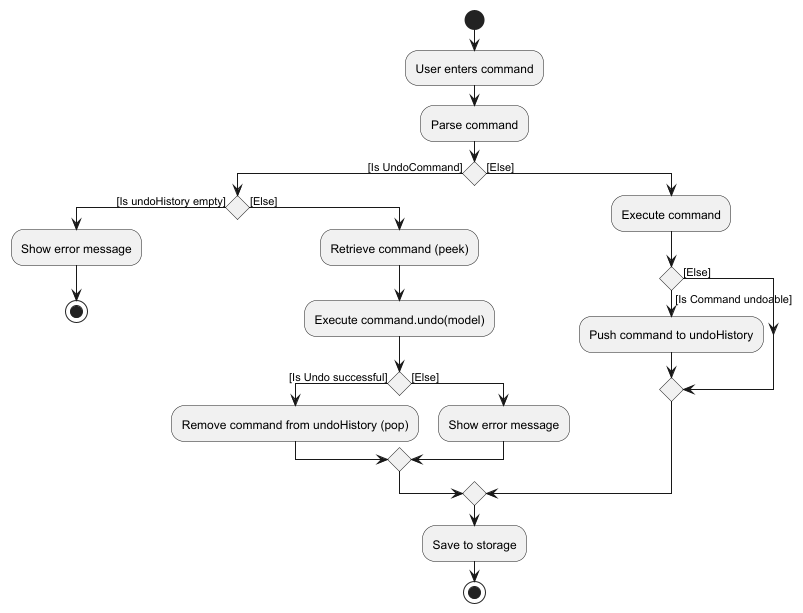
Note: Undo methods in commands directly interact with the Model to revert changes. Hence, we are not having an object diagram here. UI and Storage components are omitted from the diagrams as they are not directly involved in the undo mechanism.
Design Considerations
Aspect: How undo executes:
-
Alternative 1 : Saves the entire address book.
- Pros: Easy to implement.
- Cons: May have performance issues in terms of memory usage.
-
Alternative 2 (current choice): Individual command knows how to undo by
itself.
- Pros: Will use less memory (e.g. for
delete, just save the person being deleted). - Cons: We must ensure that the implementation of each individual command are correct.
- Pros: Will use less memory (e.g. for
Documentation, logging, testing, configuration, dev-ops
Appendix: Requirements
Product scope
Target user profile: NUS undergraduate students who
- Need to organize contact information of their Professors, Teaching Assistants and Groupmates.
- Values efficiency and prefers tools that save time and reduce friction.
- Prefer using CLI over GUI.
Value proposition: CampusBridge helps NUS undergraduate students to organize and access contact information for their academic contacts such as professors, teaching assistants, and groupmates.
It does so by providing a centralized, easy-to-use system to save, search, and manage academic contacts efficiently.
User stories
Priorities: High (must have) - * * *, Medium (nice to have) - * *, Low (unlikely to have) - *
Current version
| Priority | As a … | I can … | So that I can… |
|---|---|---|---|
* * * |
user | add a contact | store and organize important academic contact information in one place |
* * * |
user | view all my contacts | quickly see everyone in one place |
* * * |
user | delete a contact | keep my contact list accurate and organized |
* * * |
user | edit a specific contact | quickly correct mistakes in their contact information |
* * * |
user | exit the application | safely close CampusBridge when I am done using it |
* * * |
user | have my contacts saved automatically | prevent losing my data when the application closes |
* * * |
user | validate my input | minimize incorrect information |
* * * |
new user | see clear error messages | understand what went wrong and correct my input without feeling confused |
* * * |
regular user | search contacts by name, email and tags | quickly find someone |
* * * |
new user | view help details | see specific examples and parameter requirements for that command |
* * |
regular user | sort contacts by name, email, or phone in ascending or descending order | browse them more easily |
* * |
new user | view preloaded sample modules and contacts | understand the app’s layout and value without adding real data |
* * |
user | add new tags to an existing contact | keep their information updated as the semester evolves |
* * |
user | delete specific tags from a contact without deleting the entire contact | keep my contact information accurate |
* * |
user | clear all tags of a specific type from a contact | reset the contact’s categorization without manually deleting every individual tag |
* * |
expert user | undo my last action | instantly revert an accidental deletion without stress |
* * |
expert user | have keyboard shortcuts | operate the system efficiently |
* * |
expert user | copy any contact field | efficiently transfer information to other applications without manual typing |
* * |
expert user | view colour-coded tags | quickly identify and prioritize important information. |
* * |
regular user | navigate command history | execute or modify past commands without retyping them |
Near-future version
| Priority | As a … | I can … | So that I can… |
|---|---|---|---|
* |
user | export contact data in a human-readable format like JSON | can edit it easily |
* |
regular user | mark a preferred contact method | know the fastest way to reach someone |
* |
regular user | mark certain contacts as favorites | keep my most important connections easily accessible at the top of my list |
* |
frequent user | add notes to contacts | store useful contextual information |
* |
fast typing user | use short aliases for commands | minimize keystrokes |
* |
forgetful student | see a list of “Available Now” contacts based on their office hours | know exactly who I want to visit for a walk-in consultation |
* |
regular user | create a personal profile | tailor the application experience to my specific preferences and needs |
* |
user | view a list of command history | recall what I just changed |
* |
advanced user | bulk add contacts at once | save time when entering many contacts |
* |
advanced user | bulk delete contacts at once | remove outdated or unnecessary contacts efficiently |
* |
advanced user | bulk edit contacts at once | manage large contact groups with minimal effort |
* |
user managing multiple semesters | toggle between “current semester” and “past semesters” views | reference old contacts without cluttering my main screen |
* |
user desiring full control | customize the GUI theme | personalize my experience |
* |
regular user | create “sub-groups” for teammates within a module | manage project-specific communication efficiently |
* |
frequent user | set custom reminders for prof/TA office hours | stay on top of opportunities for academic help |
* |
new user | import my existing contacts | avoid manually adding them |
* |
user with many past contacts | archive old semester contacts | have my active list remain uncluttered and focused on current needs |
* |
user | add my current semester’s modules by searching NUS module codes | categorize contacts accurately and save time |
See the full list on GitHub
Use cases
(For all use cases below, the System is the CampusBridge and the Actor is the user, unless specified otherwise)
Use case: UC01 - Getting help
Preconditions: Application is running
MSS:
- User requests for help.
- CampusBridge displays usage information in the result box and opens the relevant section of the user guide in the browser.
Use case ends.
Extension:
- 1a. User provides an unrecognised command name.
- 1a1. CampusBridge shows an error message indicating the command name does not exist and list all the valid commands.
Use case ends.
- 1b. User provides more than one word.
- 1b1. CampusBridge shows an error message indicating invalid command format.
Use case ends.
Use case: UC02 - Add a contact
Preconditions: Application is running
MSS:
- User requests to add a contact.
- User provides the contact details.
- CampusBridge adds the contact and updates the contact list.
- CampusBridge shows a success message.
Use case ends.
Extension:
- 2a. User provides an invalid input.
- 2a1. CampusBridge shows an error message indicating invalid command format.
Use case ends.
- 2b. Email or Telegram handle already exists in the contact list.
- 2b1. CampusBridge shows an error message indicating the contact already exists.
Use case ends.
Use case: UC03 - Edit a contact
Preconditions: Application is running and the user has added a contact.
MSS:
- User requests to list contacts (UC08).
- User requests to edit a contact in the list.
- User provides new contact details for that contact.
- CampusBridge edits the contact and updates the contact list.
- CampusBridge shows a success message.
Use case ends.
Extension:
- 3a. User provides an invalid input.
- 3a1. CampusBridge shows an error message indicating the invalid command format.
Use case ends.
- 3b. Specified contact does not exist.
- 3b1. CampusBridge shows an error message indicating the contact does not exist.
Use case ends.
- 3c. Email or Telegram handle already exists in the contact list.
- 3c1. CampusBridge shows an error message indicating the contact already exists.
Use case ends.
Use case: UC04 - Delete a contact
Preconditions: Application is running and the user has added a contact.
MSS:
- User requests to list contacts (UC08).
- User requests to delete a contact in the list.
- CampusBridge deletes the contact and updates the contact list.
- CampusBridge shows a success message.
Use case ends.
Extensions:
- 2a. User provides an invalid input.
- 2a1. CampusBridge shows an error message indicating the invalid command format.
Use case ends.
- 2b. Specified contact does not exist.
- 2b1. CampusBridge shows an error message indicating the contact does not exist.
Use case ends.
Use case: UC05 - Add tags to an existing contact
Preconditions: Application is running and the user has added a contact.
MSS:
- User requests to list contacts (UC08).
- User requests to add tags to a contact in the list.
- User provides tag details for that contact.
- CampusBridge adds the tags and updates the contact list.
- CampusBridge shows a success message.
Use case ends.
Extensions:
- 3a. User provides an invalid input.
- 3a1. CampusBridge shows an error message indicating the invalid command format.
Use case ends.
- 3b. Specified contact does not exist.
- 3b1. CampusBridge shows an error message indicating the contact does not exist.
Use case ends.
- 3c. All specified tags already exist on the contact.
- 3c1. CampusBridge shows an error message indicating the contact already has these tags.
Use case ends.
- 4a. Some (but not all) specified tags already exist on the contact.
- 4a1. CampusBridge adds only new tags and updates the contact list.
- 4a2. CampusBridge shows a success message indicating the new tags added and the tags skipped.
Use case ends.
Use case: UC06 - Remove tags from a contact
Preconditions: Application is running
MSS:
- User requests to list contacts (UC08).
- User requests to remove one or more tags from a contact.
- CampusBridge removes the specified tags and displays the updated contact.
Use case ends.
Extensions:
- 2a. User provides an invalid input.
- 2a1. CampusBridge shows an error message indicating the invalid command format.
Use case ends.
- 2b. Specified contact does not exist.
- 2b1. CampusBridge shows an error message indicating the contact does not exist.
Use case ends.
- 2c. None of the specified tags exist on the contact.
- 2c1. CampusBridge shows an error indicating none of the tags were found.
Use case ends.
- 3a. Some (but not all) specified tags exist on the contact.
- 3a1. CampusBridge removes the existing tags and displays the updated contact.
- 3a2. CampusBridge informs the user which tags were not found.
Use case ends.
Use case: UC07 - Clearing all tags of a type from a contact
Preconditions: Application is running
MSS:
- User requests to list contacts (UC08).
- User requests to clear tags of a specific type.
- CampusBridge clears all the tags of the specific type and updates the contact list.
- CampusBridge shows a success message.
Use case ends.
Extensions:
- 2a. User provides an invalid input.
- 2a1. CampusBridge shows an error message indicating the invalid command format.
Use case ends.
- 2b. Specified contact does not exist.
- 2b1. CampusBridge shows an error message indicating the contact does not exist.
Use case ends.
- 2c. No tags of specified type exist.
- 2c1. CampusBridge shows an error indicating no tags found to clear.
Use case ends.
Use case: UC08 - Listing all contacts
Preconditions: Application is running
MSS:
- User requests to list all contacts.
- CampusBridge shows a list of all contacts.
Use case ends.
Extensions:
- 1a. User provides extra arguments.
- 1a1. CampusBridge shows an error message indicating the invalid command format.
Use case ends.
Use case: UC09 - Sorting contacts
Preconditions: Application is running
MSS:
- User requests to sort contacts.
- User provides sort field (name/email/phone/none) and optional reverse order.
- CampusBridge sorts the contacts based on the specified criteria.
- CampusBridge displays the list of contacts in the specified sorted order.
Use case ends.
Extensions:
- 2a. User provides an invalid input.
- 2a1. CampusBridge shows an error message indicating the invalid command format.
Use case ends.
Use case: UC10 - Search contacts
Preconditions: Application is running
MSS:
- User requests to search for contacts.
- User provides the search details.
- CampusBridge shows the contacts matching the search query.
Use case ends.
Extensions:
- 2a. User provides an invalid input.
- 2a1. CampusBridge shows an error message indicating the invalid command format.
Use case ends.
- 3a. No contacts exist in the list.
- 3a1. CampusBridge informs the user that no contacts match the search query.
Use case ends.
Use case: UC11 - Undo previous action
Preconditions: Application is running
MSS:
- User requests to undo the most recent action.
- CampusBridge restores the data to its previous state.
- CampusBridge keeps the current filtered view unchanged.
- CampusBridge shows the updated state and a success message. If restored contacts do not match the active filter, they may remain hidden and the success message states this explicitly.
Use case ends.
Extensions:
- 1a. No undoable commands available in undo history.
- 1a1. CampusBridge shows an error message indicating that there are no actions to undo.
Use case ends.
Use case: UC12 - Navigating command history
Preconditions: Application is running
MSS:
- User requests to navigate to an earlier command.
- CampusBridge displays the earlier command. Steps 1-2 are repeated until the user is satisfied.
Use case ends.
Extensions:
- 1a. No command history exists.
- 1a1. CampusBridge does nothing.
Use case ends.
- 2a. User requests to navigate to a more recent command.
- 2a1. CampusBridge displays the more recent command.
Use case resumes at step 1.
- 2b. No earlier command exists.
- 2b1. CampusBridge does nothing.
Use case resumes at step 1.
- 2c. No more recent command exists.
- 2c1. CampusBridge clears the command box (returns to empty input).
Use case resumes at step 1.
Use case: UC13 - Clearing all contacts
Preconditions: Application is running
MSS:
- User requests to clear all contacts.
- CampusBridge clears all contacts.
Use case ends.
Extensions:
- 1a. User provides extra arguments.
- 1a1. CampusBridge shows an error message indicating the invalid command format.
Use case ends.
Use case: UC14 - Exiting
Preconditions: Application is running
MSS:
- User requests to exit the app.
- CampusBridge terminates.
Use case ends.
Extensions:
- 1a. User provides extra arguments.
- 1a1. CampusBridge shows an error message indicating the invalid command format.
Use case ends.
Non-Functional Requirements
- Should work on any mainstream OS as long as it has Java
17or above installed. - Should be able to hold up to 1000 persons and return search results or complete command executions within 1 second.
- A user with above average typing speed for regular English text (i.e. not code, not system admin commands) should be able to accomplish most of the tasks faster using commands than using the mouse.
- Changes should be implemented incrementally, i.e. in a way that allows the app to be usable after each increment, even if some features are not yet implemented.
- All logics and storage should be implemented locally, to ensure testability and usability in secure environments without internet access.
- The distributed JAR file should not be bloated, preferably less than 15MB, to ensure that it can be easily downloaded and stored on devices with limited storage.
Glossary
- Brownfield project: A software project developed upon an existing codebase, rather than starting from scratch.
- Canvas: A web-based Learning Management System (LMS) used by NUS. It serves as a central digital platform for students to access course materials, as well as submit assignments and take quizzes.
- CLI (Command-line interface): A text-based user interface where users type specific commands to interact with the application or OS.
- Command: A text instruction entered by the user (e.g.
add,delete,edit) that triggers a specific action in the application. - Course: An academic course offered at NUS, identified by a unique course code (e.g. CS2103T, CS2101).
- Course tag: A type of tag (displayed in blue) used to label a contact with an NUS course code. Its prefix is
tc/. - Duplicate person: A contact is considered a duplicate if another contact already has the same email or the same non-null Telegram handle. Email and Telegram handle comparisons are case-insensitive.
- Filtered view: The subset of contacts currently displayed in the CampusBridge window, which may be limited by an active search (
findcommand) or sort order (sortcommand). - Fuzzy matching: A search technique used in the
findcommand that allows for minor typos or substrings rather than requiring an exact character-for-character match. - General tag: A type of tag (displayed in red) for any user-defined label. Its prefix is
tg/. - Groupmate: A fellow student who collaborates with you on academic projects, assignments, or study groups within the same module.
- GUI (Graphical user interface): A visual way for users to interact with digital components through items like icons and buttons.
- Index: A positive integer representing the position of a contact in the currently displayed list.
- Mainstream OS: Windows, Linux, Unix, MacOS.
- NUS domain: Email addresses from NUS-affiliated domains, including
@u.nus.edu, @*.nus.edu, @nus.edu.sg, @*.nus.edu.sg, @duke-nus.edu.sg, @*.duke-nus.edu.sg, @yale-nus.edu.sg, and @*.yale-nus.edu.sg. - Prefix: A short identifier (e.g.
n/,e/,tg/) used in commands to denote the type of parameter that follows. - Professor: An academic staff member who teaches a course at NUS.
- Role tag: A type of tag (displayed in green) used to label a contact’s academic role. Its prefix is
tr/. - Tag: A label attached to a contact for categorization.
- Teaching assistant (TA): A graduate or undergraduate student who assists with teaching duties, including conducting tutorials and grading assignments.
- Undoable command: A command (e.g.
add,delete,edit,tag) that can be reversed using theundocommand. Commands likelistandfindare not undoable. - Undo history stack: An internal data structure that stores previous commands, allowing the user to revert changes in reverse chronological order.
Appendix: Instructions for manual testing
Given below are instructions to test the app manually.
Note: These instructions only provide a starting point for testers to work on;
testers are expected to do more exploratory testing.
Launch and shutdown
-
Initial launch
-
Download the jar file and copy into an empty folder
-
Double-click the jar file Expected: Shows the GUI with a set of sample contacts. The window size may not be optimum.
-
-
Saving window preferences
-
Resize the window to an optimum size. Move the window to a different location. Close the window.
-
Re-launch the app by running
java -jar CampusBridge-v1.6.jarin the terminal.Expected: The most recent window size and location is retained.
-
-
Shutting down
-
Test case:
exit
Expected: The application closes. -
Alternative: Press
F3(orFn + F3on Mac).
Expected: Same as above. -
Test case:
exit 123
Expected: Application does not close. Error details shown indicating command does not take in any parameter.
-
Viewing help
-
Opening general help
-
Test case:
help
Expected: A summary of available commands is shown in the result box. The User Guide opens in the system default browser. -
Alternative: Press
F1(orFn + F1on Mac).
Expected: Same as above. -
Test case:
helpwith no internet connection
Expected: A summary of available commands is still shown in the result box. The browser may open to an error page.
-
-
Opening command-specific help
-
Test case:
help add
Expected: The usage message for theaddcommand is shown in the result box. The User Guide opens in the system default browser at theaddcommand section. -
Test case:
help ADD
Expected: Same ashelp add(case-insensitive). -
Test case:
help addwith no internet connection
Expected: The usage message for theaddcommand is still shown in the result box. -
Other valid command names to try:
help edit,help delete,help tag,help untag,help cleartag,help list,help sort,help find,help undo,help clear,help exit
Expected: The usage message for the respective command is shown in the result box. The User Guide opens at the respective command section.
-
-
Invalid help arguments
-
Test case:
help INVALID
Expected: The User Guide does not open. Error details shown in the status message. -
Test case:
help add extra
Expected: Same as above. Only a single command name is accepted; extra words cause a format error.
-
Adding a person
-
Adding a person with all fields
-
Prerequisites: Start with the sample data loaded. Ensure the email and Telegram handle used below do not already exist.
-
Test case:
add n/John Doe e/johndoe@example.com p/9123 4567 h/john_doe
Expected: A new contact is added to the list. The success message shows the added person’s details.
-
-
Adding a person with only compulsory fields
-
Prerequisites: Ensure the email used below does not already exist.
-
Test case:
add n/Jane Doe e/janedoe@example.com
Expected: A new contact is added without phone number and Telegram handle. The success message shows the added person’s details.
-
-
Adding a person with a non-NUS email
-
Prerequisites: Ensure the email used below does not already exist.
-
Test case:
add n/Alex Tan e/alextan@gmail.com
Expected: A new contact is added. A warning is shown indicating that the email is not an NUS domain.
-
-
Adding a person with duplicate email or Telegram handle
-
Prerequisites: Add a contact using
add n/Test Person e/testperson@example.com h/test_person. -
Test case:
add n/Another Person e/testperson@example.com
Expected: No person is added. The status message showsA person with this email already exists in the address book. -
Test case:
add n/Another Person e/anotherperson@example.com h/test_person
Expected: No person is added. The status message showsA person with this Telegram handle already exists in the address book. -
Test case:
add n/Case Person e/caseperson@example.com h/TEST_PERSON
Expected: No person is added. The status message showsA person with this Telegram handle already exists in the address book. -
Test case:
add n/Another Person e/testperson@example.com h/test_person
Expected: No person is added. The status message showsA person with this email already exists, and a person with this Telegram handle already exists in the address book.
-
-
Invalid add commands
-
Test case:
add n/John Doe
Expected: No person is added. The status message shows an invalid command format error. -
Test case:
add e/johndoe@example.com
Expected: No person is added. The status message shows an invalid command format error. -
Test case:
add n/John Doe e/invalid-email
Expected: No person is added. The status message shows email constraints. -
Test case:
add n/John Doe n/Jane Doe e/johndoe@example.com
Expected: No person is added. The status message shows the duplicate-prefix error. -
Test case:
add n/John Doe e/johndoe@example.com tg/friend
Expected: No person is added. The status message shows unexpected extra inputtg/friend.
-
Editing a person
- Editing a person with all fields
-
Prerequisites: Start with the sample data loaded. Ensure the email and Telegram handle used below do not already exist. At least one person in the list.
-
Test case:
edit 1 n/John Lim e/johnlim@nus.edu.sg p/81234567 h/john_LIM
Expected: The first contact is updated with the new details. The success message shows the edited person’s details.
-
- Editing a person with one field
-
Prerequisites: Start with the sample data loaded. Ensure the email and Telegram handle used below do not already exist. At least one person in the list.
-
Test case:
edit 1 n/John Lim
Expected: The first contact’s name is updated. All other fields remain unchanged. The success message shows the edited person’s details. -
Test case:
edit 1 e/johnlim@u.nus.edu
Expected: The first contact’s email is updated. All other fields remain unchanged. The success message shows the edited person’s details. -
Test case:
edit 1 p/12345678
Expected: The first contact’s phone number is updated. All other fields remain unchanged. The success message shows the edited person’s details. -
Test case:
edit 1 h/johnlimm
Expected: The first contact’s Telegram handle is updated. All other fields remain unchanged. The success message shows the edited person’s details.
-
- Editing a person with a non-NUS email
-
Prerequisites: Start with the sample data loaded. Ensure the email used below does not already exist. At least one person in the list.
-
Test case:
edit 1 e/john@gmail.com
Expected: The first contact’s email is updated. A warning is shown indicating that the email is not an NUS domain.
-
- Editing a person with duplicate email or Telegram handle
-
Prerequisites: Start with the sample data loaded. The first contact in the displayed list is
Tan Wei Ming, with emailtanwm@comp.nus.edu.sgand Telegram handletanwm_nus. At least two persons are in the list. -
Test case:
edit 2 e/tanwm@comp.nus.edu.sg
Expected: No changes made. Error details shown indicating a person with this email already exists. -
Test case:
edit 2 h/tanwm_nus
Expected: No changes made. Error details shown indicating a person with this Telegram handle already exists.
-
- Clearing optional fields
-
Prerequisites: At least one person in the list with a phone number and Telegram handle.
-
Test case:
edit 1 p/
Expected: The first contact’s phone number is removed. Success message shown. -
Test case:
edit 1 h/
Expected: The first contact’s Telegram handle is removed. Success message shown. -
Test case:
edit 1 p/ h/
Expected: Both phone and Telegram handle are removed. Success message shown.
-
- Invalid edit commands
-
Test case:
edit
Expected: No changes made. Invalid command format error shown. -
Test case:
edit 1
Expected: No changes made. Invalid command format error shown. -
Test case:
edit 0 n/John Lim
Expected: No changes made. Error details shown indicating the index should be a positive integer. -
Test case:
edit 999 n/John Lim(where 999 is larger than list size)
Expected: No changes made. Error details shown in the status message indicating no person exists at that index and tip to uselistcommand. -
Test case:
edit 1 n/John Lim n/Jane Lim
Expected: No changes made. Error details shown indicating duplicate prefixes. -
Test case:
edit 1 n/John Lim tg/friend
Expected: No changes made. Error details shown indicating unexpected extra input.
-
Deleting a person
-
Deleting a person by index
-
Prerequisites: List all persons using the
listcommand. Multiple persons in the list. -
Test case:
delete 1
Expected: First contact is deleted from the list. Details of the deleted contact shown in the status message.
-
-
Invalid delete commands
-
Test case:
delete
Expected: No person deleted. Error details shown in the status message indicating invalid command format and command usage. -
Test case:
delete abc
Expected: No person deleted. Error details shown in the status message indicating invalid command format and command usage. -
Test case:
delete 100(where 100 is larger than list size)
Expected: No person deleted. Error details shown in the status message indicating no person exists at that index and tip to uselistcommand.
-
Tagging a person
-
Adding tags to a person
-
Prerequisites: List all persons using the
listcommand. Multiple persons in the list. Ensure the first and second person has no existing tags. -
Test case:
tag 1 tg/friends
Expected:friendsgeneral tag is added to the 1st person in the list. Status message shows the details of the new tags added. -
Test case:
tag 2 tg/groupmates tc/cs2103
Expected: Bothgroupmatesgeneral tag andcs2103course tag are added to the 2nd person in the list. Status message shows the details of the new tags added. -
Test case:
tag 2 tr/tutor tr/TUTOR(duplicate with different case)
Expected: Only onetutorrole tag is added to the 2nd person in the list. Status message shows the details of the new tags added. -
Test case:
tag 2 tr/mentor tg/mentor(same name, different types)
Expected: Bothmentorrole tag andmentorgeneral tag are added to the 2nd person in the list. Status message shows the details of the new tags added.
-
-
Adding tags to a person where some tags already exist
-
Prerequisites: List all persons using the
listcommand. Multiple persons in the list. Ensure the first person only have existingfriendsgeneral tag andcs2103course tag. - Test case:
tag 1 tg/friends tg/groupmates(wherefriendsalready exists)
Expected: Onlygroupmatesgeneral tag is added to the 1st person in the list. Status message shows:New tags added: [GENERAL: groupmates] Tags already existing (no changes made): [GENERAL: friends] - Test case:
tag 1 tc/cs2109s tc/cs2100 tc/cs2103(wherecs2103already exists)
Expected:cs2109sandcs2100course tags are added to the 1st person in the list. Status message shows:New tags added: [COURSE: cs2109s, COURSE: cs2100] Tags already existing (no changes made): [COURSE: cs2103]
-
-
Adding tags to a person where all tags already exist
-
Prerequisites: List all persons using the
listcommand. Multiple persons in the list. Ensure the first person have existingfriendsgeneral tag andcs2103course tag. -
Test case:
tag 1 tg/friends(wherefriendsalready exists)
Expected: No changes made. Error details shown in the status message indicating that all tags already exist for this person and no changes made. -
Test case:
tag 1 tg/friends tc/cs2103(where both tags already exists)
Expected: No changes made. Error details shown in the status message indicating that all tags already exist for this person and no changes made.
-
-
Invalid tag commands
-
Test case:
tag
Expected: No tag added. Error details shown in the status message indicating invalid command format and command usage. -
Test case:
tag 0
Expected: No tag added. Error details shown in the status message indicating index must be a positive integer (1, 2, 3…). -
Test case:
tag 1 test(missing prefix)
Expected: No tag added. Error details shown in the status message indicating invalid command format and command usage. -
Test case:
tag 1 n/alice(invalid prefixes)
Expected: No tag added. Error details shown in the status message indicating invalid command format and unexpected extra input. -
Test case:
tag 1 tr/(missing value)
Expected: No tag added. Error details shown in the status message indicating invalid command format and empty value provided for prefix. -
Test case:
tag 100 tg/friends(where 100 is larger than list size)
Expected: No tag added. Error details shown in the status message indicating no person exists at that index and tip to uselistcommand. -
Test case:
tag 1 tr/tutor space
Expected: No tag added. Error details shown in the status message indicating tags names should be alphanumeric only (no spaces or special characters).
-
Untagging a person
-
Removing tags from a person
-
Prerequisites: List all persons using the
listcommand. Multiple persons in the list. Ensure the first person have existingtutorrole tag,cs2103course tag,friendsandgroupmatesgeneral tags. -
Test case:
untag 1 tg/friends
Expected:friendsgeneral tag is removed from the 1st person in the list. Status message shows the details of the tags removed. -
Test case:
untag 1 tg/groupmates tc/cs2103
Expected: Bothgroupmatesgeneral tag andcs2103course tag are removed from the 1st person in the list. Status message shows the details of the tags removed. -
Test case:
untag 1 tr/tutor tr/TUTOR(duplicate with different case)
Expected: Only onetutorrole tag is removed from the 1st person in the list. Status message shows the details of the tags removed.
-
-
Removing tags from a person where some tags don’t exist
-
Prerequisites: List all persons using the
listcommand. Multiple persons in the list. Ensure the first person only have existingcs2103course tag andfriendsgeneral tags. - Test case:
untag 1 tg/friends tr/tutor(wherefriendsexists buttutordoesn’t)
Expected: Onlyfriendsgeneral tag is removed from the 1st person in the list. Status message shows:Tags removed: [GENERAL: friends] Tags not found: [ROLE: tutor] - Test case:
untag 1 tc/cs2109s tc/cs2100 tc/cs2103(wherecs2103exists butcs2109sandcs2100doesn’t)
Expected: Onlycs2103course tag is removed from the 1st person in the list. Status message shows:Tags removed: [COURSE: cs2103] Tags not found: [COURSE: cs2109s, COURSE: cs2100]
-
-
Removing tags from a person where all tags don’t exist
-
Prerequisites: List all persons using the
listcommand. Multiple persons in the list. Ensure the first person has no existing tags. -
Test case:
untag 1 tg/nonexistent
Expected: No changes made. Error details shown in the status message indicating that none of the specified tags were found. -
Test case:
untag 1 tr/notfound tg/missing
Expected: No changes made. Error details shown in the status message indicating that none of the specified tags were found.
-
-
Invalid untag commands
-
Test case:
untag
Expected: No tag removed. Error details shown in the status message indicating invalid command format and command usage. -
Test case:
untag 0
Expected: No tag removed. Error details shown in the status message indicating index must be a positive integer (1, 2, 3…). -
Test case:
untag 1 test(missing prefix)
Expected: No tag removed. Error details shown in the status message indicating invalid command format and command usage. -
Test case:
untag 1 n/alice(invalid prefixes)
Expected: No tag removed. Error details shown in the status message indicating invalid command format and unexpected extra input. -
Test case:
untag 1 tr/(missing value)
Expected: No tag removed. Error details shown in the status message indicating invalid command format and empty value provided for prefix. -
Test case:
untag 100 tg/friends(where 100 is larger than list size)
Expected: No tag removed. Error details shown in the status message indicating no person exists at that index and tip to uselistcommand. -
Test case:
untag 1 tr/tutor space
Expected: No tag removed. Error details shown in the status message indicating tags names should be alphanumeric (no spaces or special characters).
-
Clearing all tags of a specific type
-
Clearing all tags of a specific type from a person
-
Prerequisites: List all persons using the
listcommand. Multiple persons in the list. Ensure both first and second person have existing general and role tags. -
Test case:
cleartag 1 tg/
Expected: All the general tags are cleared from the 1st person in the list. Status message shows the details of the general tags cleared. -
Test case:
cleartag 2 tr/
Expected: All the role tags are cleared from the 2nd person in the list. Status message shows the details of the role tags cleared.
-
-
Clearing all tags of a specific type from a person where no tags of specified type exist
-
Prerequisites: List all persons using the
listcommand. Multiple persons in the list. Ensure both first and second person has no existing tags. -
Test case:
cleartag 1 tc/
Expected: No changes made. Error details shown in the status message indicating that no course tags found to clear. -
Test case:
cleartag 2 tr/
Expected: No changes made. Error details shown in the status message indicating that no role tags found to clear.
-
-
Invalid cleartag commands
-
Test case:
cleartag
Expected: No tag cleared. Error details shown in the status message indicating invalid command format and command usage. -
Test case:
cleartag 0
Expected: No tag cleared. Error details shown in the status message indicating index must be a positive integer (1, 2, 3…). -
Test case:
cleartag 1(missing prefix)
Expected: No tag cleared. Error details shown in the status message indicating invalid command format and command usage. -
Test case:
cleartag 1 n/alice(invalid prefixes)
Expected: No tag cleared. Error details shown in the status message indicating invalid command format and unexpected extra input. -
Test case:
cleartag 1 tr/ tr/(multiple same prefixes)
Expected: No tag cleared. Error details shown in the status message indicating multiple values specified for the following single-valued field(s):tr/. -
Test case:
cleartag 1 tr/ tg/(multiple prefixes)
Expected: No tag cleared. Error details shown in the status message indicating invalid command format and command usage. -
Test case:
cleartag 100 tg/(where 100 is larger than list size)
Expected: No tag cleared. Error details shown in the status message indicating no person exists at that index and tip to uselistcommand. -
Test case:
cleartag 1 tr/tutor
Expected: No tag cleared. Error details shown in the status message indicating invalid command format and prefix should not contain any value.
-
Sorting persons
-
Sorting by a valid field
-
Prerequisites: List all persons using the
listcommand. Multiple persons in the list. -
Test case:
sort o/name
Expected: Contact list is sorted alphabetically by name (ascending). Status message showsSorted by name (ascending). -
Test case:
sort o/name r/
Expected: Contact list is sorted alphabetically by name (descending). Status message showsSorted by name (descending). -
Test case:
sort o/email
Expected: Contact list is sorted by email address (ascending). Status message showsSorted by email (ascending). -
Test case:
sort o/phone
Expected: Contact list is sorted by phone number (ascending). Contacts with no phone number appear at the end of the list. Status message showsSorted by phone (ascending). -
Test case:
sort o/email r/
Expected: Contact list is sorted by email address (descending). Status message showsSorted by email (descending).
-
-
Resetting sort order
-
Test case:
sort o/none
Expected: Contact list reverts to the default (insertion) order. Status message showsSort order reset to default. -
Test case:
sort o/none r/
Expected: Sort order is not reset. Error details shown in the status message indicating thatr/cannot be used witho/none.
-
-
Invalid sort commands
-
Test case:
sort
Expected: List is not sorted. Error details shown in the status message. -
Test case:
sort o/INVALID
Expected: List is not sorted. Error details shown in the status message indicating the unsupported order value. -
Test case:
sort o/NAME(uppercase)
Expected: List is sorted by name. Order values are case-insensitive. -
Test case:
sort o/name r/value
Expected: List is not sorted. Error details shown in the status message indicating thatr/does not accept a value. -
Test case:
sort o/name o/email
Expected: List is not sorted. Error details shown in the status message indicating duplicateo/prefix.
-
Locating persons by name/email/tag
-
Searching by single field
-
Prerequisites: List all persons using the
listcommand. At least one person should be in the list. -
Test case:
find n/Alex
Expected: Contacts whose names matchAlex(case-insensitive; supports substring and fuzzy matching) are shown. -
Test case:
find e/nus.edu
Expected: Contacts with email addresses containingnus.edu(case-insensitive substring) are shown. -
Test case:
find t/friends
Expected: Contacts with the tagfriends(case-insensitive exact match) are shown.
-
-
Searching by multiple keywords/fields
-
Prerequisites: List all persons using the
listcommand. At least two persons should be in the list. -
Test case:
find n/Alex David
Expected: Contacts whose names matchAlexORDavidare shown (i.e. matches at least one keyword). -
Test case:
find n/Alex e/nus.edu
Expected: Contacts whose names matchAlexAND whose email containsnus.eduare shown. -
Test case:
find n/Alex e/nus.edu t/friends
Expected: Contacts matching all three criteria (Name AND Email AND Tag) are shown.
-
-
Fuzzy search for names (slight typo tolerance)
-
Prerequisites: A contact with name
Alice Tanexists. -
Test case:
find n/alce
Expected:Alice Tanis shown in the results. -
Test case:
find n/aliec
Expected:Alice Tanis shown in the results. -
Test case:
find n/Tan
Expected:Alice Tanis shown in the results.
-
-
Invalid search commands
-
Test case:
find(no parameters)
Expected: Error message indicating invalid command format and showing usage. -
Test case:
find n/
Expected: Error message indicating empty value provided for prefixn/. -
Test case:
find p/91234567(unsupported prefix for find)
Expected: Error message indicating unexpected extra inputp/91234567.
-
Undoing the last action
-
Undoing the most recent undoable command
-
Prerequisites: List all persons using the
listcommand. At least one person exists in the list. -
Test case:
add n/John Doe e/johndoe@example.comfollowed byundo
Expected: The previously added contact is removed from the list. Status message indicates that the last add action has been undone. -
Test case:
delete 1followed byundo
Expected: The deleted contact is restored. The current filtered view remains unchanged. Status message indicates that the last delete action has been undone.
-
-
Undoing multiple commands consecutively
-
Prerequisites: List all persons using the
listcommand. Multiple persons in the list. -
Test case: Execute
add n/A e/a@example.com, thenadd n/B e/b@example.com, thenundo, thenundo
Expected: Both added contacts are removed one by one in reverse order. Status message reflects each undo operation.
-
-
Undo when no undoable commands are available
-
Prerequisites: Start the application fresh, or ensure all previous undoable commands have already been undone.
-
Test case:
undo
Expected: No changes to the contact list. Error details shown in the status message indicating that there are no actions to undo.
-
-
Undo after non-undoable commands
-
Prerequisites: List all persons using the
listcommand. -
Test case:
add n/John Doe e/johndoe@example.com, thenlist, thenundo
Expected: The previously added contact is removed. Thelistcommand does not affect undo history. -
Test case:
help, thenundo
Expected: No changes to the contact list. Error details shown in the status message if there are no undoable commands.
-
-
Undo after a mix of commands
-
Prerequisites: List all persons using the
listcommand. Multiple persons in the list. -
Test case:
add n/A e/a@example.com,list,delete 1, thenundo
Expected: The deleted contact is restored. Thelistcommand is ignored by undo, and the current filtered view remains unchanged. -
Test case:
find n/alex,clear, thenundo
Expected: All contacts are restored in the address book, but the filtered view still shows only contacts matchingalex. Status message indicates that restored contacts may be hidden by the current filter.
-
-
Persistence after undo
-
Prerequisites: List all persons using the
listcommand. -
Test case:
add n/John Doe e/johndoe@example.com, thenundo, then restart the application
Expected: The contact list reflects the undone state (i.e., the added contact does not appear).
-
-
Invalid undo command
- Test case:
undo extra
Expected: No changes to the contact list. Error details shown in the status message indicating that the command does not accept parameters.
- Test case:
Navigating command history
-
Cycling through past commands
-
Prerequisites: Enter at least three commands in sequence, e.g.
list,sort o/name,help. -
Press the Up arrow key in the command box.
Expected: The command box fills with the most recently entered command (help). -
Press Up again.
Expected: The command box shows the previous command (sort o/name). -
Press Down.
Expected: The command box shows the next command in history (help).
-
-
Navigating beyond history bounds
-
Press Up repeatedly past the oldest command in history.
Expected: The command box stays at the oldest command; it does not wrap around. -
Press Down past the most recent command.
Expected: The command box clears (returns to empty input).
-
-
History is not affected by invalid commands
-
Enter a valid command (e.g.
list), then an invalid command (e.g.badcommand). -
Press Up once.
Expected: The invalid commandbadcommandis shown (all submitted input, valid or not, is recorded).
-
Using keyboard shortcuts
-
Clearing the input box
-
Prerequisites: Application is running. Some text is present in the input box.
-
Test case (Windows/Linux): Press
Delete
Expected: The input box is cleared. -
Test case (macOS): Press
fn + Delete
Expected: The input box is cleared.
-
-
Exiting the application
-
Prerequisites: Application is running.
-
Test case (Windows/Linux): Press
F3orfn + F3
Expected: The application closes. -
Test case (macOS): Press
fn + F3
Expected: The application closes.
-
-
Opening help
-
Prerequisites: Application is running.
-
Test case (Windows/Linux): Press
F1orfn + F1
Expected: The User Guide opens in the system default browser. -
Test case (macOS): Press
fn + F1
Expected: Same as above.
-
-
Listing all contacts
-
Prerequisites: Application is running.
-
Test case (Windows/Linux): Press
F2orfn + F2
Expected: All contacts are displayed in the list. -
Test case (macOS): Press
fn + F2
Expected: Same as above.
-
-
Invalid or unsupported key combinations
- Test case: Press unrelated keys (e.g.,
F4,Ctrl + F1)
Expected: No action is triggered. Application remains unchanged.
- Test case: Press unrelated keys (e.g.,
Saving data
-
Dealing with a missing data file
-
Prerequisites: Locate the data file at
data/addressbook.json. Delete it. -
Relaunch the application. Expected: The application starts with the sample contact list. A new data file is created after any valid command is executed or when the app closes.
-
-
Dealing with a corrupted data file
-
Prerequisites: Locate the data file at
data/addressbook.json. Open it in a text editor and introduce invalid content (e.g., delete a closing brace}or replace a field value with gibberish). -
Relaunch the application. Expected: The application starts with an empty contact list. The corrupted file is not loaded to prevent data loss from bad state.
-
-
Auto-saving after changes
-
Prerequisites: Application is running.
-
Test case: Add a new contact, then close the application using the close button. Relaunch. Expected: The newly added contact is present.
-
Appendix: Effort
Challenges faced
- Architectural onboarding: As TP is a brownfield project, significant time was spent tracing the codebase and understanding existing design patterns.
- Team coordination and synchronization: Working in a shared codebase made it challenging to track concurrent changes and maintain consistency across contributions.
- Technical ambiguity: The team had to resolve uncertainties about the most appropriate way to implement features and standardize error messages across modules.
- Complex undo logic: Implementing the undo feature required bespoke handling for each command type to ensure state changes could be reversed correctly across different scenarios.
- Refactoring and redundancy: The team also had to identify duplicated code and extract reusable logic into shared helper classes.
Effort required
- Rigorous testing and quality assurance: Substantial effort was devoted to designing and executing test cases that covered many input permutations and uncovered edge-case bugs.
- Comprehensive error handling: Beyond implementing features, the team invested significant effort in thorough validation and in deciding how errors should be handled and communicated to users.
- Exhaustive code reviews: Team members carefully reviewed one another’s pull requests to avoid duplicated work and ensure the implementation was sound.
Achievements
- Data integrity and robustness: Successfully navigated complex data permutations (valid/invalid assignments, duplicate handling) to ensure a stable system.
- Refined logic and refactoring: The team turned individual contributions into a cohesive whole through active refactoring and the introduction of generalized utility classes.
- Successful system extension: The team successfully adapted to and extended a large existing codebase.
Appendix: Planned Enhancements
Team size: 6
We identified 12 planned enhancements in total, including several currently unfixable limitations and bugs.
-
Improve copy usability
Currently, copying requires two clicks because of the existing UI design, which presents information as a panel of cards and fields. Users must first select the card, then select the specific field to copy. This interrupts the keyboard-centric workflow that CampusBridge is designed for, forcing users to switch from CLI to mouse interaction. We plan to implement a CLI-based copy command that allows users to copy contact information directly from the command line. The command would support copying a specific field (e.g.copy 1 e/to copy the email of the first contact,copy 1 n/to copy the name) or copying all visible information of a contact (e.g.,copy 1 all). The copied content would be placed into the system clipboard, ready to be pasted elsewhere. This enhancement preserves the CLI-first philosophy of CampusBridge, allowing fast typists to extract contact information without ever touching the mouse. -
Reduce noise in fuzzy search results
The currentfindcommand uses fuzzy search, which can return irrelevant matches. For example, if both Robert and Hubert exist in the address book, searching for either name may return both entries. A future enhancement would be to prioritise exact matches whenever both exact and fuzzy matches are available. -
Improve handling of special characters in
findcommand.
If a special character is detected in any name keyword, case-insensitive substring matching is applied to all keywords within the name field and fuzzy matching is disabled. Other search fields remain unaffected and continue to use default matching. While this behavior is documented, it may not be intuitive to users. A planned enhancement is to introduce clearer feedback or validation to inform users when special characters affect the matching behavior. Additionally, we aim to explore more flexible handling of special characters in the 3 search fields to better align with user expectations and improve UI. -
Allow spaces and selected special characters in tags
Currently, tags only support alphanumeric characters (A-Z, a-z, 0-9). This forces users to combine multiple words into a single string (e.g., StudyGroup instead of Study Group) or omit common separators like hyphens and underscores entirely. As a result, tags become less readable, less intuitive to use, and fail to accommodate real-world naming conventions such as cs2103-tutorial-group or study group monday. We plan to enhance tag flexibility by allowing spaces and commonly used separator characters including hyphens (-), underscores (_), and potentially periods (.). For example, after this enhancement,tag 1 tg/study group mondaywould add a single general tag “study group monday”. The existing alphanumeric-only constraint would be relaxed while maintaining tag name uniqueness within each tag type and preserving case-insensitive matching. This makes tags more expressive, practical, and aligned with how users naturally think about categorizing their academic contacts. -
More inclusive regex for international names
Currently, names only allow letters, numbers, spaces, and these symbols:(,),.,-,,,'. However, in the real-world context, names actually contain accented Latin characters (e.g. José) or non-Latin characters (e.g. Chinese characters). This limits inclusivity for NUS’s diverse international students. We plan to improve the current name validation regex to accept any letter character from any language (Unicode Letter category). This directly addresses the real-world diversity of NUS students’ and professors’ names while maintaining the application’s data integrity and usability. -
Allow forward slash (
/) characters in names
Currently, names only allow letters, numbers, spaces, and these symbols:(,),.,-,,,'. The validation regex explicitly rejects/, so users cannot enter real names containing slash-based formats such as “D/O”, “S/O”, or “W/O”. This creates friction for users who want to record names as they appear in official documents. We plan to relax name validation to allow/where appropriate. As our CLI uses slash-based prefixes (e.g.n/,e/), we will ensure the parser continues to distinguish actual command prefixes from slashes that are part of a name. For example, after this enhancement,add n/Priya D/O Anandarajah e/priya@u.nus.edushould be accepted. -
Support finding and sorting for telegram handles
Currently, thefindandsortcommands do not support searching or sorting by Telegram handles. This limits the usability of the application for NUS Students who rely on Telegram handles as a primary means of contact. A planned enhancement is to extend thefindcommand to allow searching for persons by their Telegram handles. Similarly, thesortcommand will be enhanced to support sorting by Telegram handles. -
Allow phone numbers to include an optional leading
+country code
Currently, phone numbers only allow digits and spaces, so numbers written in common international formats such as+65 91234567are rejected. This makes it difficult for users to store overseas or international contacts in a familiar format. We plan to relax phone number validation to allow an optional leading+followed by digits and spaces. For example,add n/John Doe p/+65 91234567 e/john@u.nus.eduwould be accepted. This improves support for international contacts without changing the existing command structure. -
Auto-refresh the contact list to show all contacts after an add command is executed
Currently, if afindcommand returns 0 results and the user subsequently adds a new contact, the displayed list remains empty and does not show the newly added contact if the contact does not match the applied search conditions. The user has to manually typelistto see the updated contact list. This can mislead users into thinking the add command failed.
For example:
find n/random- displays 0 persons
add n/newperson e/newperson@u.nus.edu p/91234567- list still shows 0 persons
list- newperson appears now
We plan to make the add command automatically reset the displayed list to show all contacts upon successful execution, regardless of what search term was previously applied. This way, the newly added contact will always be visible immediately after adding. -
Expand and verify the list of accepted NUS email domains to reduce false positives and false negatives
The current NUS domain warning system uses the following hardcoded list of accepted NUS email domains that suppress the warning:Email domain Behavior @u.nus.eduNo warning @*.nus.eduNo warning @nus.edu.sgNo warning @*.nus.edu.sgNo warning @duke-nus.edu.sgNo warning @*.duke-nus.edu.sgNo warning @yale-nus.edu.sgNo warning @*.yale-nus.edu.sgNo warning Other domains Warning shown (but contact is still added) This hardcoded list may be incomplete, causing:
False positives: Legitimate NUS-affiliated emails not on this list (e.g., from partner institutions or departments) incorrectly trigger the warning.
False negatives: Non-NUS emails matching a subdomain pattern may be silently accepted without warning.
We plan to liaise with NUS IT to obtain a comprehensive and authoritative list of all official NUS email domains and update the accepted domain list accordingly. - Add a maximum length restriction for tags
Currently, the app does not impose a maximum length restriction on tags. In the real world, the purpose of tags is to help users quickly categorise and find specific contacts, so tags are naturally meant to be short. While storing a very long tag does not crash the app, corrupt data, or make the app unusable, it does defeat the purpose of tags. We plan to impose a reasonable maximum character limit on tags (e.g., 30 characters) and show an error message if the limit is exceeded. For example:
add n/John Doe e/john@u.nus.edu t/thistagiswaytoolongandexceedsthelimit Error: Tag names should not exceed 30 characters. - Allow cleartag to accept multiple tag type prefixes and a
t/option to clear all tag types at once
Currently, thecleartagcommand only accepts exactly one tag type prefix at a time, meaning a user must run up to three separate commands (cleartag 1 tr/,cleartag 1 tc/,cleartag 1 tg/) to remove all tags from a contact. This is unnecessarily repetitive and goes against the product’s goal of being optimised for fast typists. A future enhancement would be to allow cleartag to accept multiple tag type prefixes in a single command (e.g.cleartag 1 tr/ tc/to clear both role and course tags), as well as a shorthandcleartag 1 t/option to clear all tag types at once, reducing the number of commands needed and making bulk tag removal more efficient.