User Guide
CampusBridge is a desktop app for NUS students to organise and manage academic contacts such as professors, teaching assistants, and groupmates. It provides a centralised place to store and search contact details that are otherwise scattered across platforms like Canvas, Telegram, and email. Optimised for use via a Command Line Interface (CLI) while still offering the benefits of a Graphical User Interface (GUI), fast typists can get contact management tasks done quicker than with traditional GUI apps.
- Quick start
- Data entry specifications
-
Features
- Viewing help :
help - Adding a person :
add - Editing a person :
edit - Deleting a person :
delete - Tagging a person :
tag - Untagging a person :
untag - Clearing all tags of a specific type :
cleartag - Listing all persons :
list - Sorting persons :
sort - Locating persons by name / email / tag :
find - Undoing the last action :
undo - Clearing all entries :
clear - Exiting the program :
exit - Navigating command history
- Saving the data
- Editing the data file
- Viewing help :
- FAQ
- Known issues
- Coming soon [in v2.0]
- Command summary
- Keyboard shortcuts summary
Quick start
-
Ensure you have Java
17or above installed in your Computer.
Mac users: Ensure you have the precise JDK version prescribed here. -
Download the latest
.jarfile from here. -
Copy the file to the folder you want to use as the home folder for your CampusBridge application.
-
Open a command terminal,
cdinto the folder you put the jar file in, and use thejava -jar CampusBridge-v1.6.jarcommand to run the application.
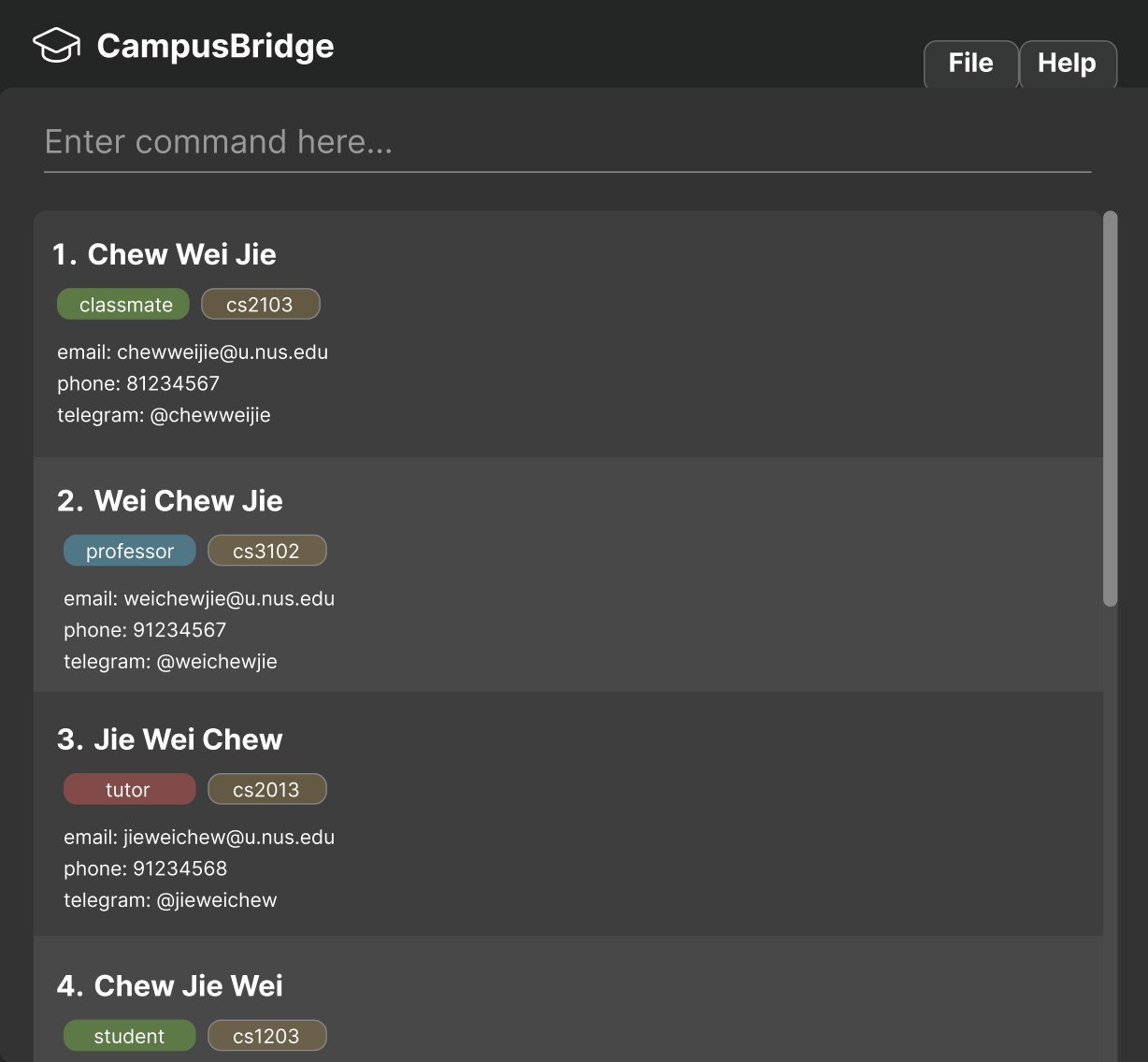
A GUI similar to the below should appear in a few seconds. Note how the app contains some sample data.
-
Type the command in the command box and press Enter to execute it. e.g. typing
helpand pressing Enter will open the user guide in the browser.
Some example commands you can try:-
list: Lists all contacts. -
add n/John Doe e/johnd@example.com p/98765432 h/johndoe123: Adds a contact namedJohn Doeto the address book. -
tag 1 tg/friend: Adds the general tagfriendto the 1st contact shown in the current list. -
find n/John: Finds all contacts whose names containJohn. -
delete 3: Deletes the 3rd contact shown in the current list. -
clear: Deletes all contacts. -
exit: Exits the app.
-
-
Refer to the Features below for additional details.
Data entry specifications
Tag specifications
CampusBridge supports three tag types, each displayed in a distinct colour:
| Tag type | Colour | Purpose | Example |
|---|---|---|---|
| Role | Green | Academic role of the contact |
professor, teachingassistant
|
| Course | Blue | NUS course code associated with the contact |
cs2103t, cs2101
|
| General | Red | Any other label |
projectmate, studygroup
|
Tag prefixes:
-
tr/ROLE_TAG— creates a Role tag -
tc/COURSE_TAG— creates a Course tag -
tg/GENERAL_TAG— creates a General tag
Tag naming constraints:
- Tag names must be alphanumeric (letters A-Z, a-z, and number 0-9 only).
- Spaces and special characters (e.g
@,#,-,!,_) are not allowed.
Case handling:
- Tags are case-insensitive —
tr/Friends,tr/FRIENDSandtr/friendsare considered the same tag. - First occurrence priority: When duplicate tags with different casing appear in the same command, the first occurrence’s casing is preserved and stored.
- Original casing is preserved — the first time a tag is added (or the first occurrence in a command), its casing is how the tag will be displayed.
- Subsequent additions with different casing will match the existing tag (case-insensitively) and will not change the display casing.
Uniqueness:
- Tag names must be unique within their type — you cannot create two Role tags with the same name.
- Different tag types can share the same name (e.g. a Role tag
mentorand a General tagmentorcan both exist).
Email validation
Emails should be of the format local-part@domain and adhere to the following constraints:
Local-part:
- Should only contain alphanumeric characters and these special characters:
+,_,.,- - May not start or end with any special characters
Domain:
- Made up of one or more domain labels. If there is more than one domain label, they are separated by periods
- Must end with a domain label at least 2 characters long
- Each domain label must start and end with alphanumeric characters
- Each domain label must consist of alphanumeric characters, separated only by hyphens, if any
- Special characters must be separated by alphanumeric characters (e.g.
a.+bis invalid)
Examples:
| Valid? | Reason | |
|---|---|---|
john.doe@example.com |
✓ | Correct domain |
john+test@u.nus.edu |
✓ | Correct domain |
.john@example.com |
✗ | Starts with special character |
john@example.c |
✗ | Domain label less than 2 characters |
NUS domain check:
CampusBridge is designed for NUS undergraduate students. When adding or editing a contact:
| Email domain | Behavior |
|---|---|
@u.nus.edu |
No warning |
@*.nus.edu |
No warning |
@nus.edu.sg |
No warning |
@*.nus.edu.sg |
No warning |
@duke-nus.edu.sg |
No warning |
@*.duke-nus.edu.sg |
No warning |
@yale-nus.edu.sg |
No warning |
@*.yale-nus.edu.sg |
No warning |
| Other domains | Warning shown (but contact is still added) |
 Note:
Non-NUS emails are still accepted, but a warning will be displayed to alert you that the email does not belong to an NUS domain.
Note:
Non-NUS emails are still accepted, but a warning will be displayed to alert you that the email does not belong to an NUS domain.
Features
 Notes about the command format:
-
Words in
UPPER_CASEare the parameters to be supplied by the user.
e.g. inadd n/NAME,NAMEis a parameter which can be used asadd n/John Doe. -
Items in square brackets are optional.
e.g.n/NAME [p/PHONE_NUMBER]can be used asn/John Doe p/1234567or asn/John Doe. -
Items with
… after them can be used multiple times including zero times.
e.g.[tg/GENERAL_TAG]…can be used astg/friend,tg/friend tg/familyetc. -
Parameters can be in any order.
e.g. if the command specifiesn/NAME p/PHONE_NUMBER,p/PHONE_NUMBER n/NAMEis also acceptable. -
Commands that do not take parameters (such as
list,exitandclear) will show an error if extra arguments are provided.
e.g.list 123will result in an error instead of being interpreted aslist. -
Prefixes are case-insensitive.
e.g. n/NAME and N/NAME are treated the same way. -
Commands are case-insensitive. e.g. ADD, Add, and add are treated the same way.
-
If you are using a PDF version of this document, be careful when copying and pasting commands that span multiple lines as space characters surrounding line-breaks may be omitted when copied over to the application.
Viewing help : help
Shows usage information in the command result box, and opens the user guide in the browser.
Format: help [COMMAND]
Alternatively, press F1 or fn + F1 to open the user guide.
-
COMMANDis optional. When provided, it must be a single valid command name (e.g.add,edit). -
COMMANDis case-insensitive. e.g.help ADD,help Add, andhelp addare treated the same. - If
COMMANDis provided, the usage message for that command is shown in the result box and the user guide is opened at the relevant section. - If
COMMANDis omitted, a summary of available commands is shown in the result box and the full user guide is opened. - If the browser cannot be opened (e.g. no internet), the usage information is still displayed in the result box.
- If
COMMANDis not a recognised command name, an error is shown listing all valid commands. - If more than one word is provided (e.g.
help add clear), an invalid command format error is shown.
Supported commands: help, add, edit, delete, tag, untag, cleartag, list, sort, find, undo, clear, exit
Examples:
-
help— shows available commands in the result box and opens the user guide in the browser. -
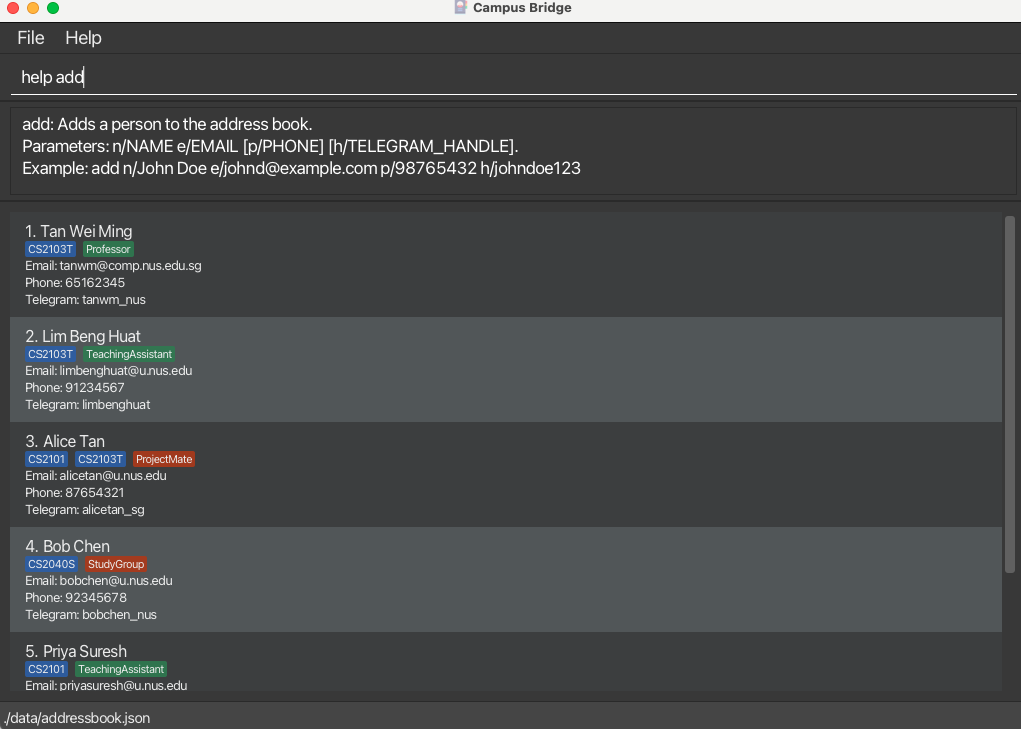
help add— shows the usage message foraddin the result box and opens the user guide at the Adding a person section.
-
help sort— shows the usage message forsortin the result box and opens the user guide at the Sorting persons section.
Adding a person : add
Adds a person to the address book.
Format: add n/NAME e/EMAIL [p/PHONE_NUMBER] [h/TELEGRAM_HANDLE]
Fields:
-
n/NAMEande/EMAILare required. - Email is required because CampusBridge uses it as the primary stable identifier for academic contacts.
-
p/PHONE_NUMBERandh/TELEGRAM_HANDLEare optional. - If no phone number is provided, the contact will be created without one.
- If no Telegram handle is provided, the contact will be created without one.
- Prefixes are case-insensitive (n/ and N/ are treated the same).
Validation rules:
- Names may contain only letters, numbers, spaces, and these symbols:
().-,'.
Other special characters are not supported. In particular,/is not accepted because it may be interpreted as command syntax. If needed, replace it with a supported symbol instead, e.g.D/OasD-O. - The requirements for a valid email are specified here.
- Phone numbers, if provided, may contain digits and spaces, and must contain at least 3 digits in total.
- Telegram handles must start with a letter, contain only letters, numbers, and underscores, be 5 to 32 characters long, not contain consecutive underscores, and not end with an underscore.
- Repeated prefixes for single-valued fields are not allowed. For example,
add n/Amy n/Ben e/x@example.comis invalid. - Any unexpected slash-prefixed token is rejected as extra input. This includes prefixes from other commands such as
t/,tr/,tc/,tg/,o/, andr/, as well as unknown prefixes such asx/.
Identity and warnings:
- A contact is treated as a duplicate if another contact already has the same email, or the same non-null Telegram handle.
- Email must be unique. You cannot add two persons with the same email address.
- Telegram handle, if provided, must be unique. You cannot add two persons with the same Telegram handle.
- Emails are treated case-insensitively for duplicate detection. For example,
John@Example.comandjohn@example.comare considered the same email. - Telegram handles are treated case-insensitively for duplicate detection. For example,
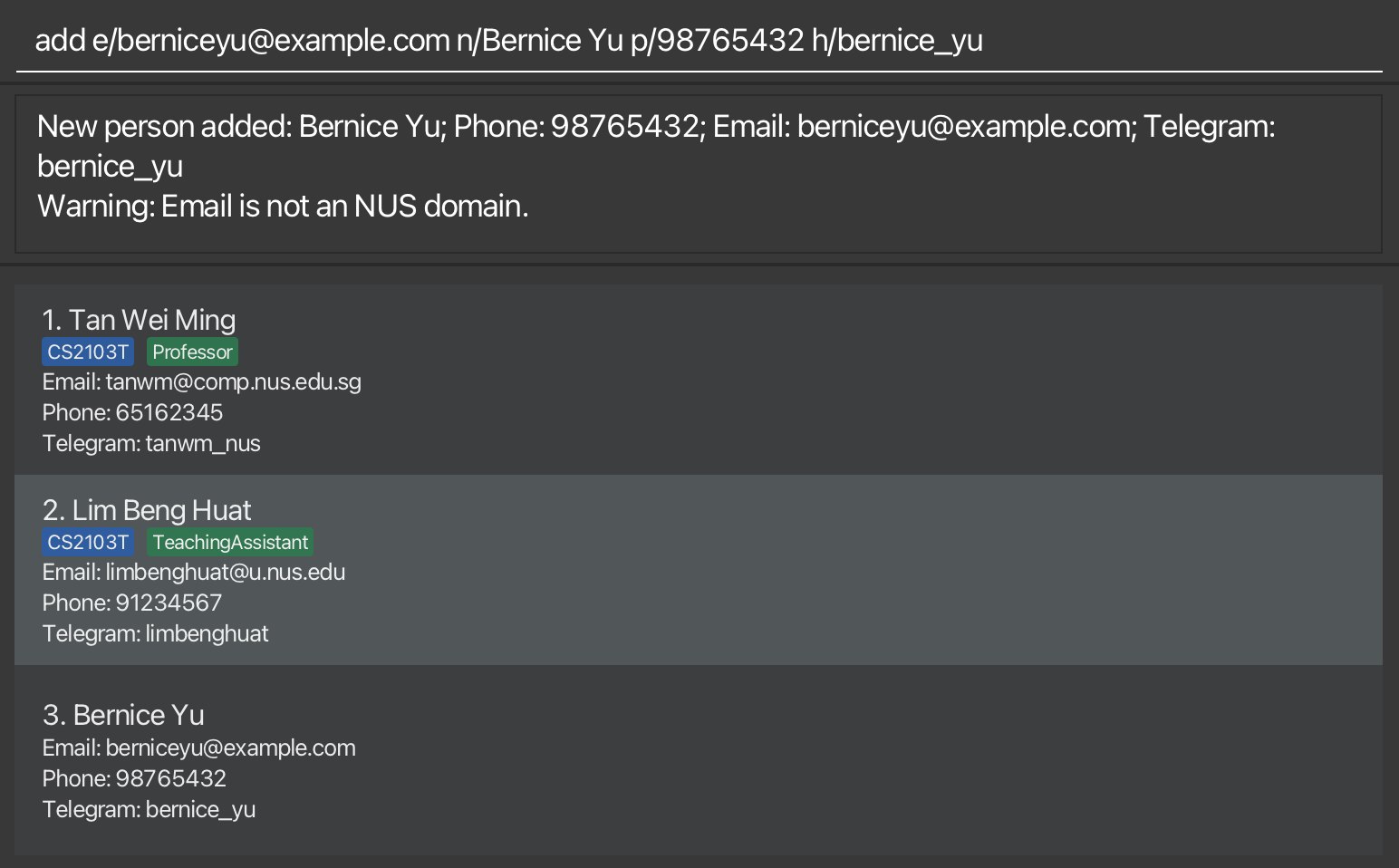
handle1andHANDLE1are considered the same handle. - If the email is not an NUS domain, the contact is still added, but a warning message is shown.
 Tip:
Parameters can be entered in any order, as long as each value is preceded by the correct prefix.
Tip:
Parameters can be entered in any order, as long as each value is preceded by the correct prefix.
Examples:
-
add n/John Doe e/johnd@example.com
Adds a contact namedJohn Doewith emailjohnd@example.com. -
add n/Betsy Crowe e/betsycrowe@example.com p/1234 5678
Adds a contact namedBetsy Crowewith emailbetsycrowe@example.comand phone number1234 5678. -
add n/Alex Lim e/alexlim@example.com h/alex_lim123
Adds a contact namedAlex Limwith emailalexlim@example.comand Telegram handlealex_lim123. -
add e/berniceyu@example.com n/Bernice Yu p/98765432 h/bernice_yu
Adds a contact namedBernice Yuwith emailberniceyu@example.com, phone number98765432, and Telegram handlebernice_yu.
Editing a person : edit
Edits an existing person in the address book.
Format: edit INDEX [n/NAME] [p/PHONE_NUMBER] [e/EMAIL] [h/TELEGRAM_HANDLE]
Fields:
-
INDEXand at least one of[n/NAME],[e/EMAIL],[p/PHONE_NUMBER],[h/TELEGRAM_HANDLE]must be provided. - The index refers to the index number shown in the displayed person list.
- The index must be a positive integer 1, 2, 3, …
- Existing values will be updated to the input values.
- To remove an optional field, use the prefix with no value:
p/clears the phone number,h/clears the Telegram handle. - Prefixes are case-insensitive (n/ and N/ are treated the same).
Validation rules:
- Updated names may contain only letters, numbers, spaces, and these symbols:
().-,'.
Other special characters are not supported. In particular,/is not accepted because it may be interpreted as command syntax. If needed, replace it with a supported symbol instead, e.g.D/OasD-O. - The requirements for a valid email are specified here.
- Phone numbers provided may contain digits and spaces, and must contain at least 3 digits in total.
- Telegram handles provided must start with a letter, contain only letters, numbers, and underscores, be 5 to 32 characters long, not contain consecutive underscores, and not end with an underscore.
- Repeated prefixes for single-valued fields are not allowed. For example,
edit 1 n/Amy n/Ben e/x@example.comis invalid. - Any unexpected slash-prefixed token is rejected as extra input. This includes prefixes from other commands such as
t/,tr/,tc/,tg/,o/, andr/, as well as unknown prefixes such asx/.
Identity and warnings:
- A contact is treated as a duplicate if another contact already has the same email, or the same Telegram handle.
- Email must be unique. You cannot add two persons with the same email address.
- Telegram handle, if provided, must be unique. You cannot add two persons with the same Telegram handle.
- Emails are treated case-insensitively for duplicate detection. For example,
John@Example.comandjohn@example.comare considered the same email. - Telegram handles are treated case-insensitively for duplicate detection. For example,
handle1andHANDLE1are considered the same handle.
Note:
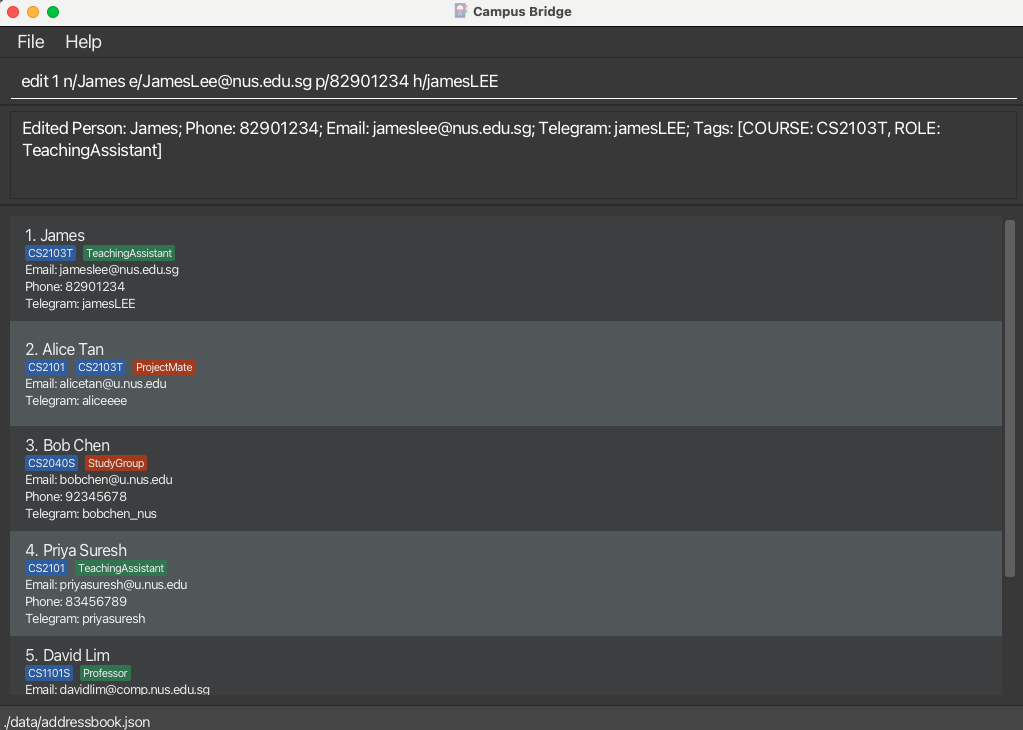
If the updated email is not an NUS domain, a warning message will be shown. The contact will still be updated.
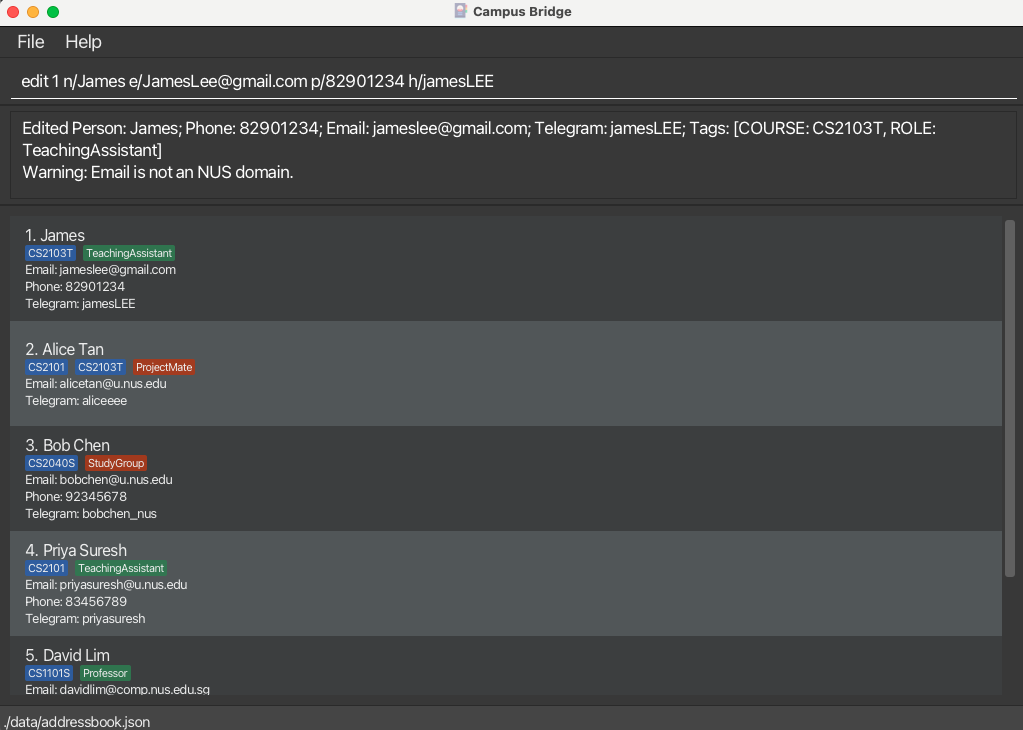
Examples:
-
edit 1 p/9123 4567 e/johndoe@u.nus.edu
Edits the phone number and email address of the 1st person to be9123 4567andjohndoe@u.nus.edurespectively. -
edit 2 n/Betsy Crower h/betsyy
Edits the name of the 2nd person to beBetsy Crowerand the telegram handle to bebetsyy. -
edit 1 p/
Removes the phone number from the 1st person. -
edit 1 h/
Removes the Telegram handle from the 1st person.
Deleting a person : delete
Deletes the specified person from the address book.
Format: delete INDEX
- Deletes the person at the specified
INDEX. - The index refers to the index number shown in the displayed person list.
- The index must be a positive integer 1, 2, 3, …
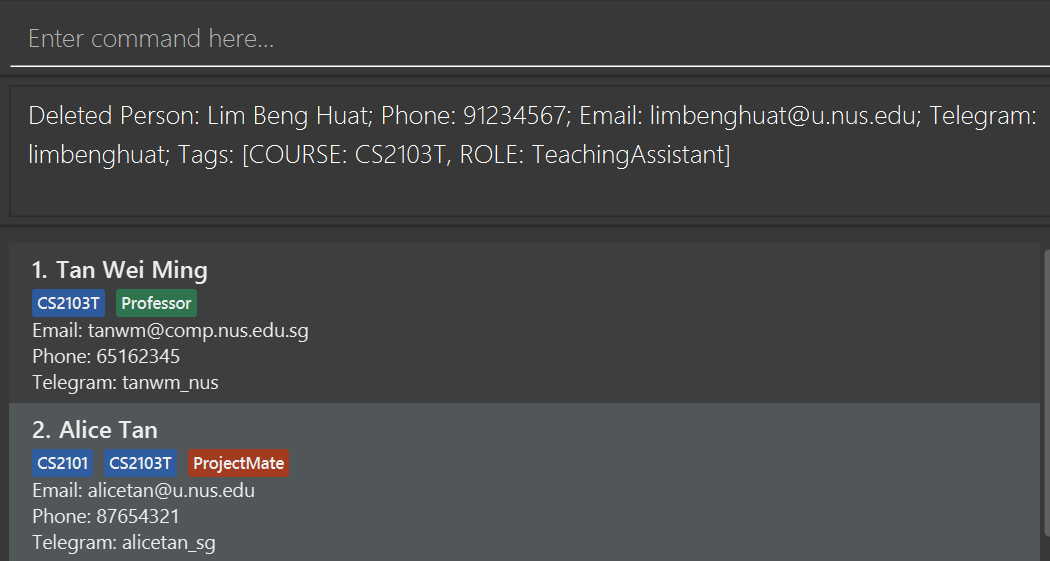
Examples:
-
list
delete 2
Deletes the 2nd person in the address book.
-
find n/Betsy
delete 1
Deletes the 1st person in the results of the
findcommand.
Tagging a person : tag
Adds one or more tags to an existing person in the address book.
Format: tag INDEX [tr/ROLE_TAG]… [tc/COURSE_TAG]… [tg/GENERAL_TAG]…
- The index must be a positive integer 1, 2, 3, …
- Tag names must be alphanumeric (refer to Tag Specifications section).
- At least one of the optional fields must be provided.
- Each tag must have a value after its prefix (e.g. tg/ alone is not allowed).
- Multiple tags (of different or same types) can be added in a single command.
- Duplicate tags in the command will be ignored.
- Any unexpected slash-prefixed token is rejected as extra input.
Behavior:
- Adds tags to the person at the specified
INDEX. - The index refers to the index number shown in the displayed person list.
- Tag matching is case-insensitive (e.g.
friendsandFRIENDSare considered the same). -
First occurrence priority: When duplicate tags with different casing are provided in the same command (e.g.
tc/cs2103 tc/CS2103), the first occurrence’s casing is preserved and stored. - Existing tags will be preserved. New tags are appended.
- If some tags already exist, only new ones are added. A message will show which tags were added and skipped.
- If all tags already exist, an error message will be shown and no changes will be made.
Tip:
Obtain the index by using: list command to display all persons or find command to filter the persons.
Examples:
-
tag 1 tg/friends
Adds thefriendsgeneral tag to the 1st person in the displayed list. -
tag 2 tr/tutor tc/cs2103 tg/helpful
Adds thetutorrole tag,cs2103course tag andhelpfulgeneral tag to the 2nd person in the displayed list. -
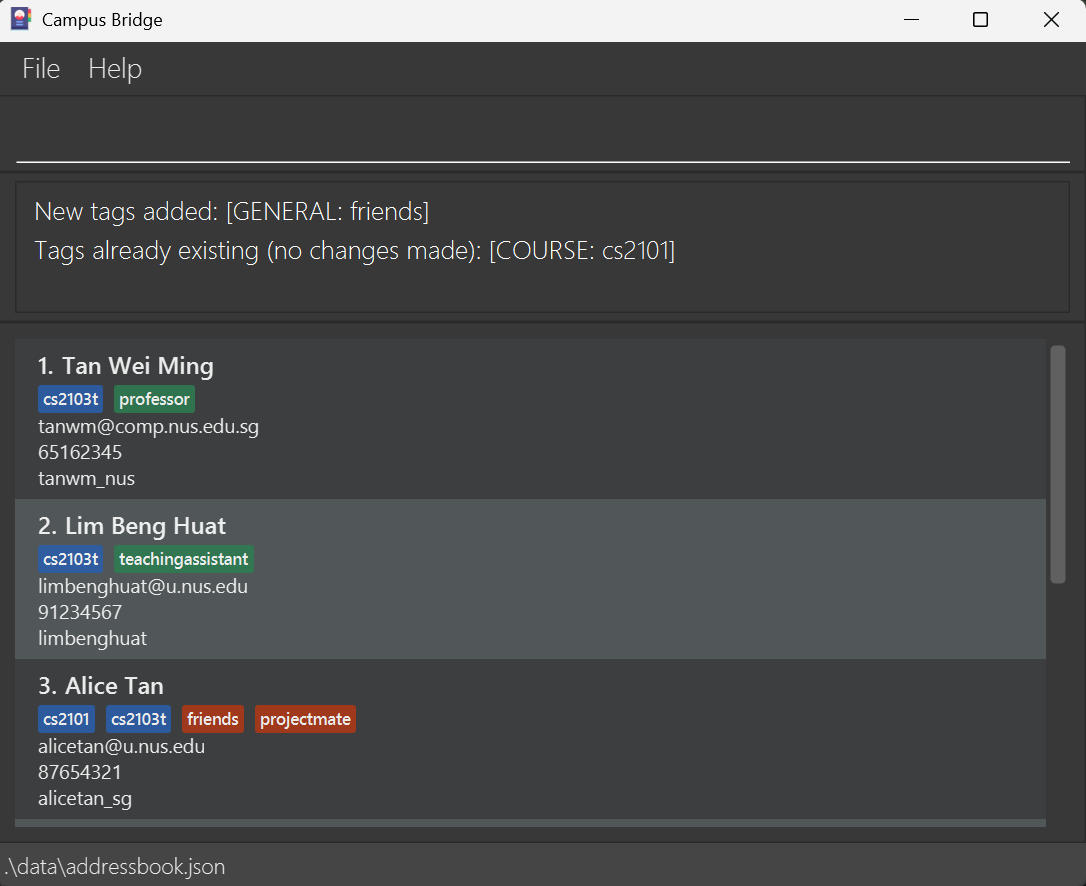
tag 3 tc/cs2101 tg/friends
Adds thefriendsgeneral tag to the 3rd person in the displayed list and showscs2101course tag already exists.
-
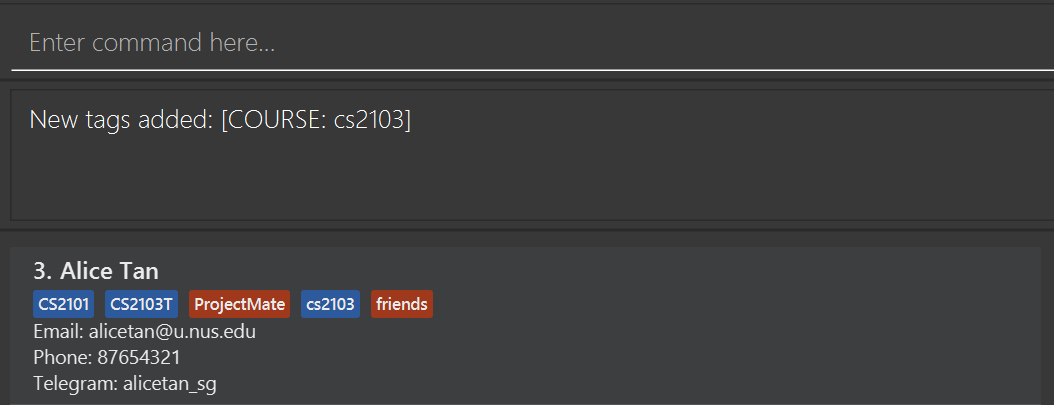
tag 3 tc/cs2103 tc/CS2103
Adds thecs2103course tag to the 3rd person in the displayed list. The duplicateCS2103is ignored, and the first occurrence’s casing (cs2103) is preserved.
Untagging a person : untag
Removes one or more tags from an existing person in the address book.
Format: untag INDEX [tr/ROLE_TAG]… [tc/COURSE_TAG]… [tg/GENERAL_TAG]…
- The index must be a positive integer 1, 2, 3, …
- Tag names must be alphanumeric (refer to Tag Specifications section).
- At least one of the optional fields must be provided.
- Each tag must have a value after its prefix (e.g. tg/ alone is not allowed).
- Multiple tags (of different or same types) can be removed in a single command.
- Duplicate tags in the command will be ignored.
- Any unexpected slash-prefixed token is rejected as extra input.
Behavior:
- Removes the specified tags from the person at the given
INDEX. - The index refers to the index number shown in the displayed person list.
- Tag matching is case-insensitive (e.g.
friendsandFRIENDSare considered the same). - The casing of the tags provided does not need to match the stored/displayed casing — the tag will be removed regardless.
- Only tags currently assigned to the person will be removed.
- Existing tags that are not specified will remain unchanged.
- If some tags exist and others don’t, the existing ones will be removed. A message will show which tags were not found.
- If none of the specified tags exist, an error message will be shown and no changes will be made.
Tip:
Obtain the index by using: list command to display all persons or find command to filter the persons.
Examples:
-
untag 1 tg/friends
Removes thefriendsgeneral tag from the 1st person in the list. -
untag 2 tr/tutor tc/cs2103 tg/classmates
Removes thetutorrole tag,cs2103course tag andclassmatesgeneral tag from the 2nd person in the list. -
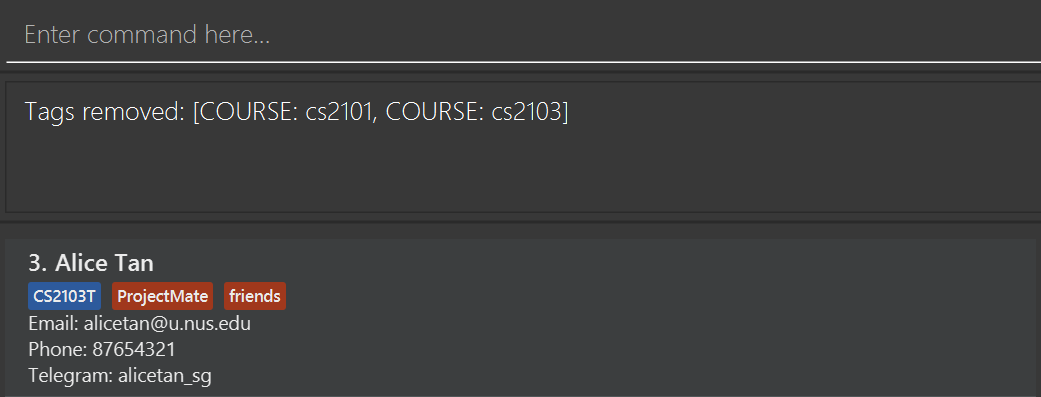
untag 3 tc/cs2101 tc/cs2103
Removes bothcs2101andcs2103course tags from the 3rd person in the list.
Clearing all tags of a specific type : cleartag
Clears all tags of a specific type from an existing person in the address book.
Format:
-
cleartag INDEX tr/— clears all role tags from the person. -
cleartag INDEX tc/— clears all course tags from the person. -
cleartag INDEX tg/— clears all general tags from the person. - The index must be a positive integer 1, 2, 3, …
- Exactly one tag type prefix must be provided (without any tag names).
- Any unexpected slash-prefixed token is rejected as extra input.
- Repeated prefixes for single-valued fields are not allowed (e.g.
cleartag 1 tr/ tr/is invalid).
Behavior:
- Clears all tags of the specified type from the person at the given
INDEX. - The index refers to the index number shown in the displayed person list.
- Only one tag type can be cleared at a time.
- Only tags of the specified type will be removed. Tags of other types remain unchanged.
- If the person has no tags of the specified type, an error message will be shown.
Tip:
Obtain the index by using: list command to display all persons or find command to filter the persons.
Examples:
-
cleartag 1 tg/
Clears all general tags from the 1st person in the displayed list. -
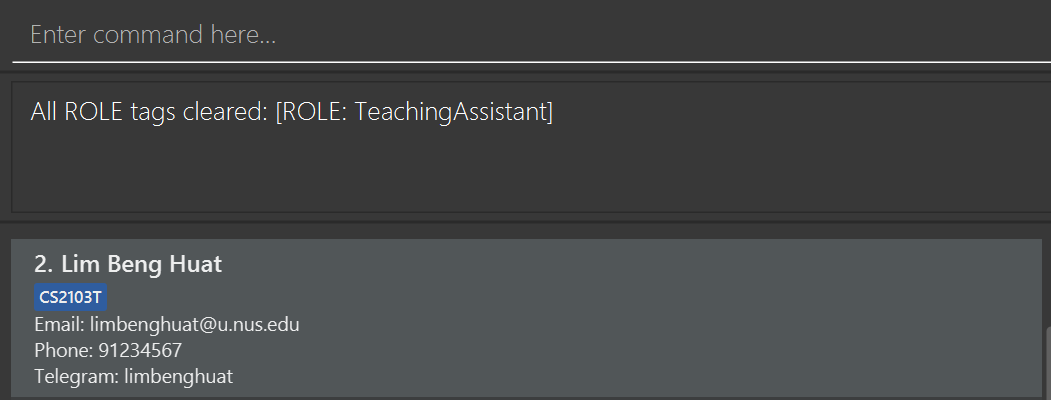
cleartag 2 tr/
Clears all role tags from the 2nd person in the displayed list.
Listing all persons : list
Shows a list of all persons in the address book.
Format: list
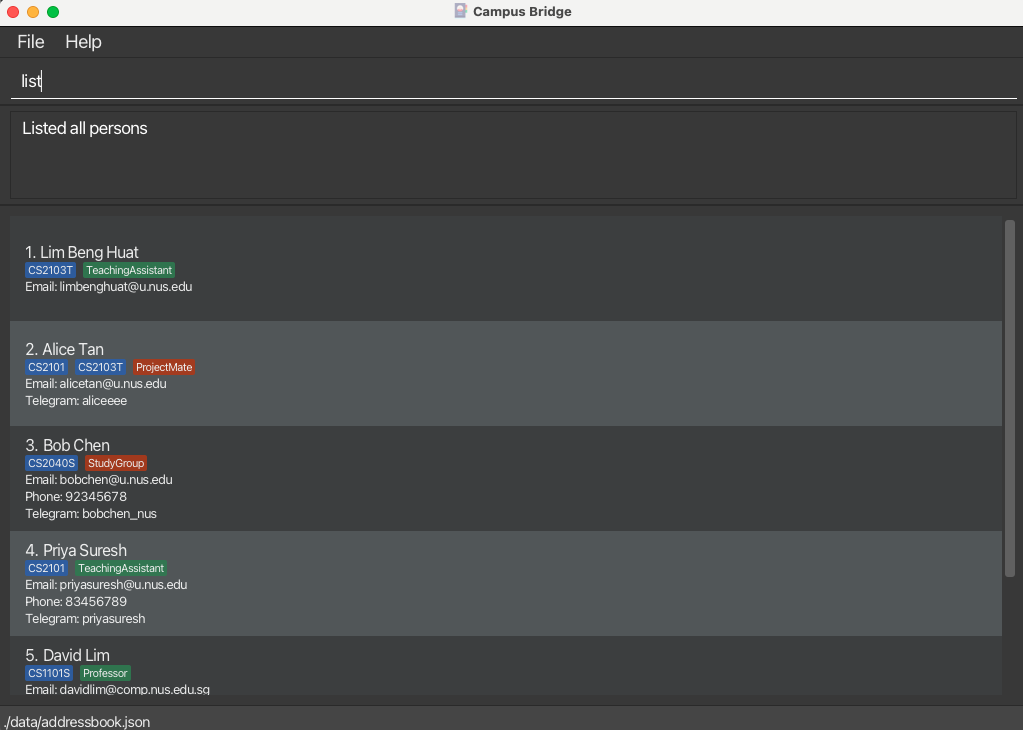
Alternatively, press F2 or fn + F2 to list all contacts.
Sorting persons : sort
Sorts the list of persons by the specified field.
Format: sort o/ORDER [r/]
-
ORDERis case-insensitive. e.g.NAMEis treated the same asname - The
r/flag is optional. When included, the sort order is reversed. -
r/cannot be used witho/none.
Sort fields:
-
name— sorts persons alphabetically by name. e.g.sort o/nameproducesAlice,Bob,Charlie -
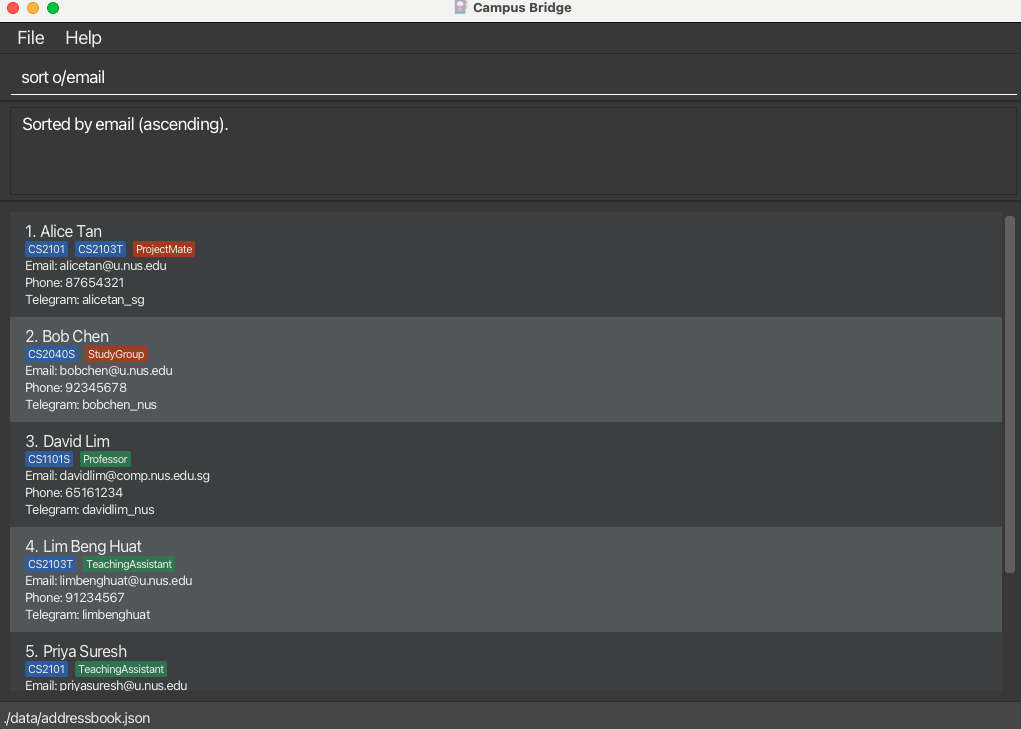
email— sorts persons alphabetically by email address. e.g.sort o/emailproducesalice@example.com,bob@example.com -
phone— sorts persons lexicographically by phone number. Persons without a phone number appear last. e.g.sort o/phoneproduces81234567,91234567, then persons with no phone -
none— resets the list to its default (insertion) order.
Examples:
-
sort o/name
Sorts all persons alphabetically by name (A–Z). -
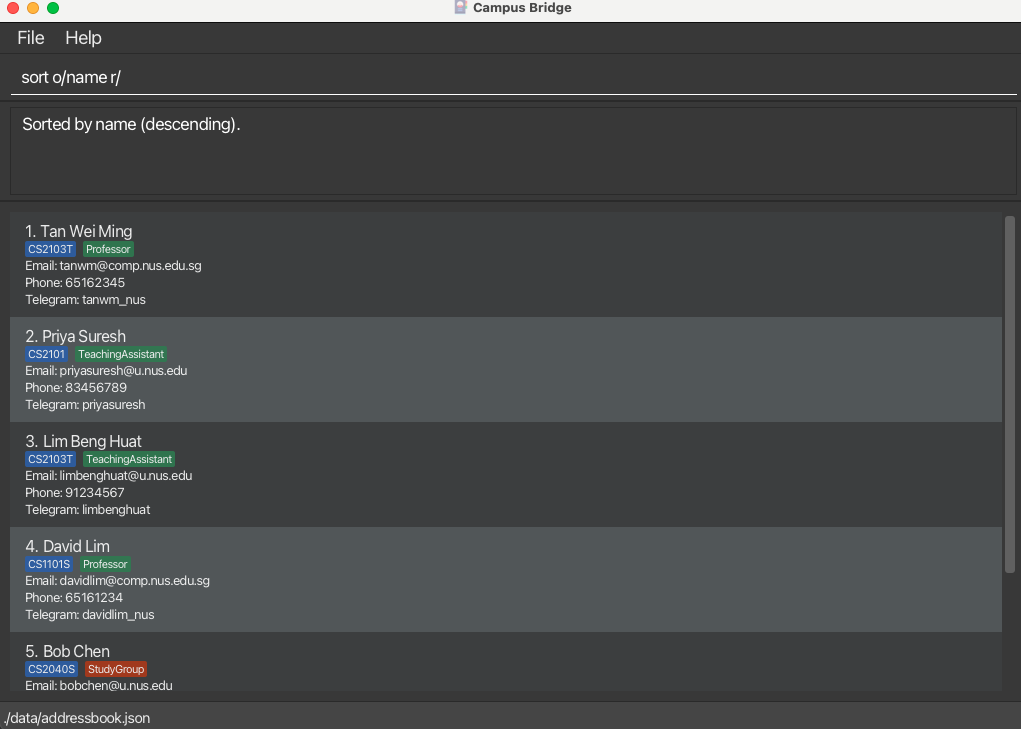
sort o/name r/
Sorts all persons in reverse alphabetical order by name (Z–A).
-
sort o/email
Sorts all persons alphabetically by email address.
-
sort o/phone r/
Sorts all persons in reverse lexicographic order by phone number. -
sort o/none
Resets the list to its default order.
Note:
The sort order stays active until you explicitly reset it (e.g. with sort o/none). Data commands (add, edit, delete, tag, untag, cleartag) do not reset the sort order.
Locating persons by name / email / tag : find
Finds persons whose names, emails, or tags match the given keywords.
Format: find [n/NAME [MORE_NAMES]] [e/EMAIL [MORE_EMAILS]] [t/TAG [MORE_TAGS]]
- At least one of
n/,e/, ort/must be present. - The search is case-insensitive for all fields. e.g.
alexwill matchAlex. - The order of keywords does not matter. e.g.
Yeoh Alexwill matchAlex Yeoh. - Keywords consisting only of special characters are not allowed (e.g.,
.,#,!@#). If you provide such a keyword, an error message will be shown. - Keywords containing special characters are allowed (e.g.,
"Dr.","J.","J-A"). - Slashes (
/) are not allowed in keywords. For example,find n/alex s/owill be rejected as it is interpreted as command syntax rather than part of the keyword.
Matching behavior:
-
Name keywords use both exact substring matching and fuzzy matching (typo-tolerant):
- Exact match:
Jowill matchJohnandAlice Johnson. - Fuzzy match:
jonwill also matchJohn(handles typos like missing or swapped letters). - The fuzzy matching threshold is calculated based on keyword length, allowing ~1 edit for short keywords and scaling up for longer keywords.
- If a special character appears in at least one of the name keywords, case-insensitive substring matching is used for all keywords. For example:
-
find n/Robert-SmithmatchesRobert-Smithbut notRobert Smith. -
find n/Robert-Jones aliecwill use substring matching for bothRobert-Jonesandaliec, so no fuzzy matching is performed foraliec.
-
- Exact match:
-
Email keywords use exact substring matching.
- e.g.
gmailwill matchjohn@gmail.comandalice.gmail@example.com. - Special characters in email keywords are matched as entered. For example,
john.doewill not matchjohndoe@gmail.com.
- e.g.
-
Tags require exact keyword matches (no partial matching), but are still case-insensitive.
- e.g.
cs2103will match tagcs2103andCS2103but notcs210.
- e.g.
- Multiple keywords within the same field are combined using OR.
e.g.
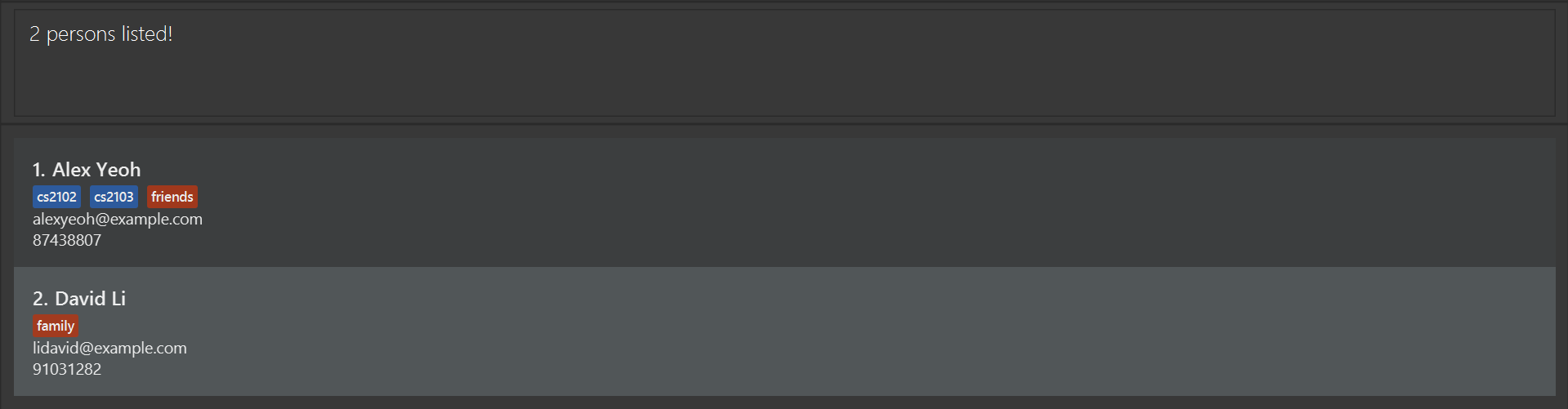
n/Alex Davidwill matchAlex YeohorDavid Li. - Different fields are combined using AND.
e.g.
n/Alex e/gmailwill match persons whose name matchesAlexand email containsgmail. - Repeated same-field prefixes are allowed.
e.g.
find n/Alex n/Davidbehaves the same asfind n/Alex David. - Empty prefixes are not allowed.
e.g.
find n/Alex e/is invalid.
Note:
The filter set by find stays active until you explicitly clear it (e.g. by running list). Data commands (add, edit, delete, tag, untag, cleartag) do not reset the active filter or sort order, so contacts that do not match the current filter may not appear in the list even after being added or modified.
Examples:
-
find n/John
Returns all persons whose names matchJohn(with fuzzy matching support). -
find n/jon
Returns all persons whose names matchjon(with fuzzy matching support).

-
find n/alice david
Returns persons whose name matchesaliceordavid(with fuzzy matching support). -
find e/gmail
Returns all persons whose emails containgmail. -
find t/friends
Returns all persons tagged withfriends. -
find n/alex e/u.nus.edu
Returns persons whose name matchesalexand email containsu.nus.edu. -
find n/alex t/friends
Returns persons whose name matchesalexand are tagged withfriends. -
find n/alex e/nus t/friends
Returns persons whose name matchesalexand email containsnusand are tagged withfriends. -
find n/alex david
Returns persons whose name matchesalexordavid.
Undoing the last action : undo
Reverts the most recent undoable command executed.
Format: undo
- Undoes the last executed command that supports undo.
- Multiple undo operations can be performed consecutively, up to the number of undoable commands previously executed.
- If there are no commands to undo, an error message will be shown.
-
undokeeps the current filtered view unchanged. - When undoing
delete,edit,clear,tag,untag, orcleartag, the restored contact(s) may still be hidden if they do not match the current filter. CampusBridge will show a reminder in the status message, and the full list can be viewed usinglist.
Undoable commands:
add
delete
edit
clear
tag
untag
cleartag
Commands that are not listed above cannot be undone.
Tip:
You can repeatedly use undo to step backwards through your previous changes.
Examples:
-
add n/John Doe e/john@example.com
undo
Reverts the addition of John Doe.
-
delete 1
undo
Restores the previously deleted person.
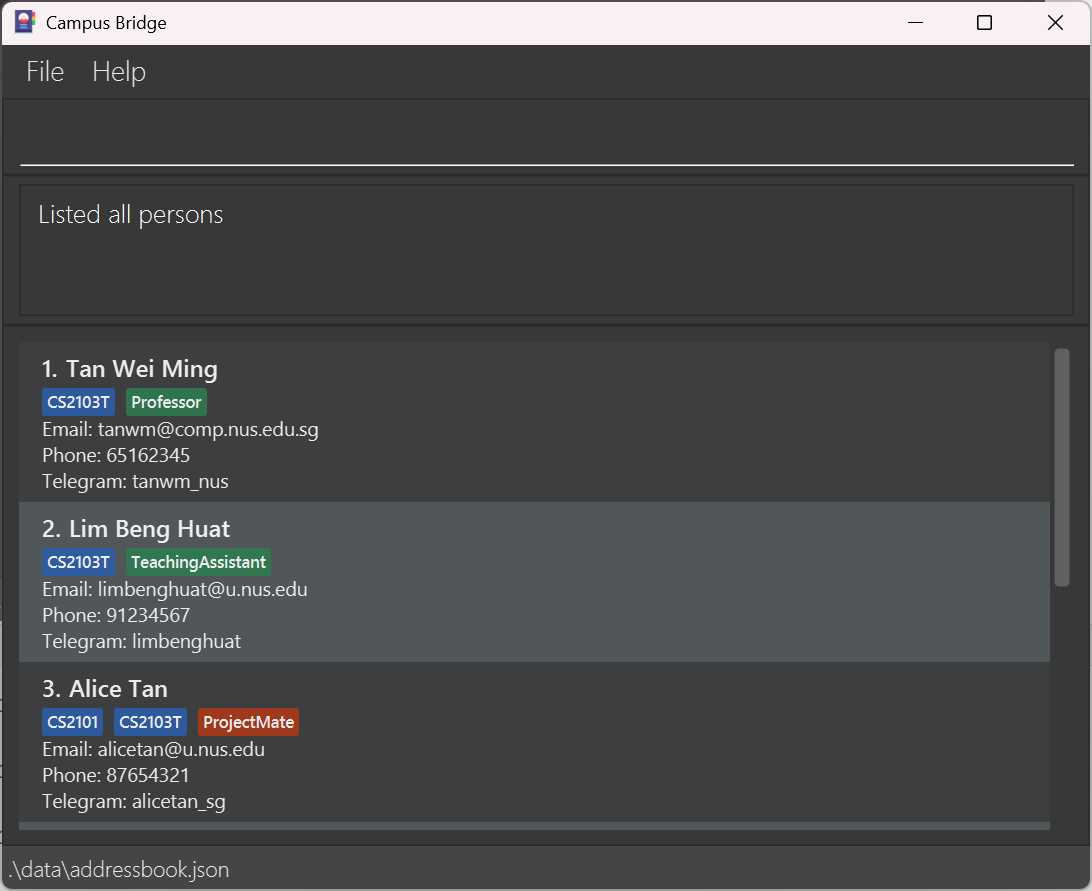
Initial list before
delete 1.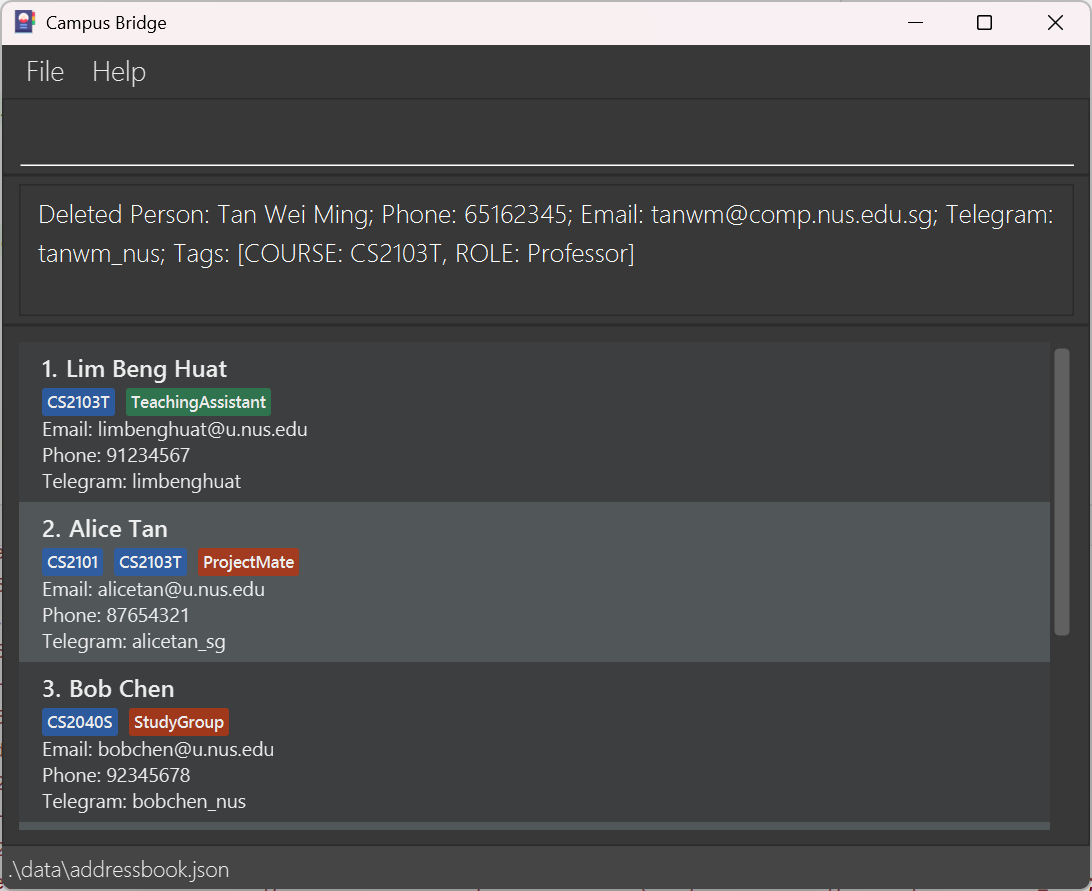
List after
delete 1.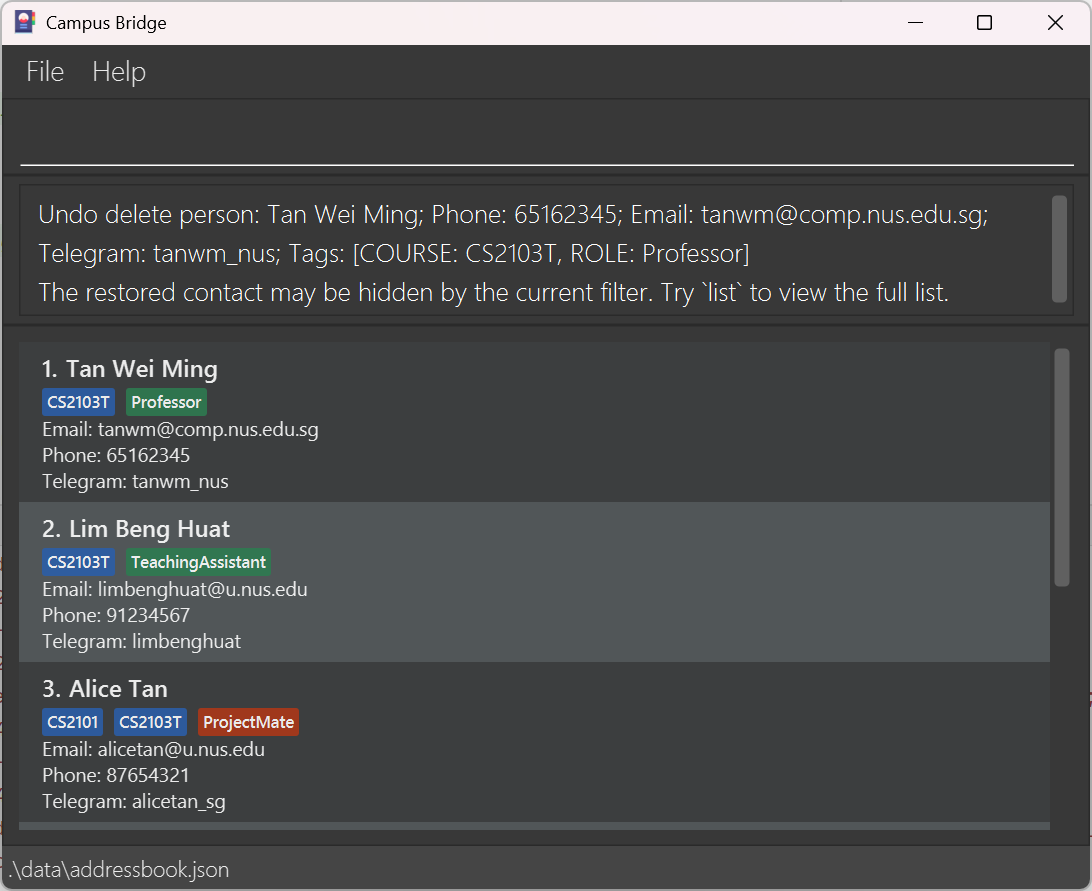
List after
undo, with the deleted person restored. -
edit 1 n/Alex Tan
undo
Restores the original details of the 1st person.
-
clear
undo
Restores all previously deleted contacts while keeping the current filter unchanged.
-
undoWhen no more commands to undo, an error message will be shown indicating that there are no actions to undo.
Clearing all entries : clear
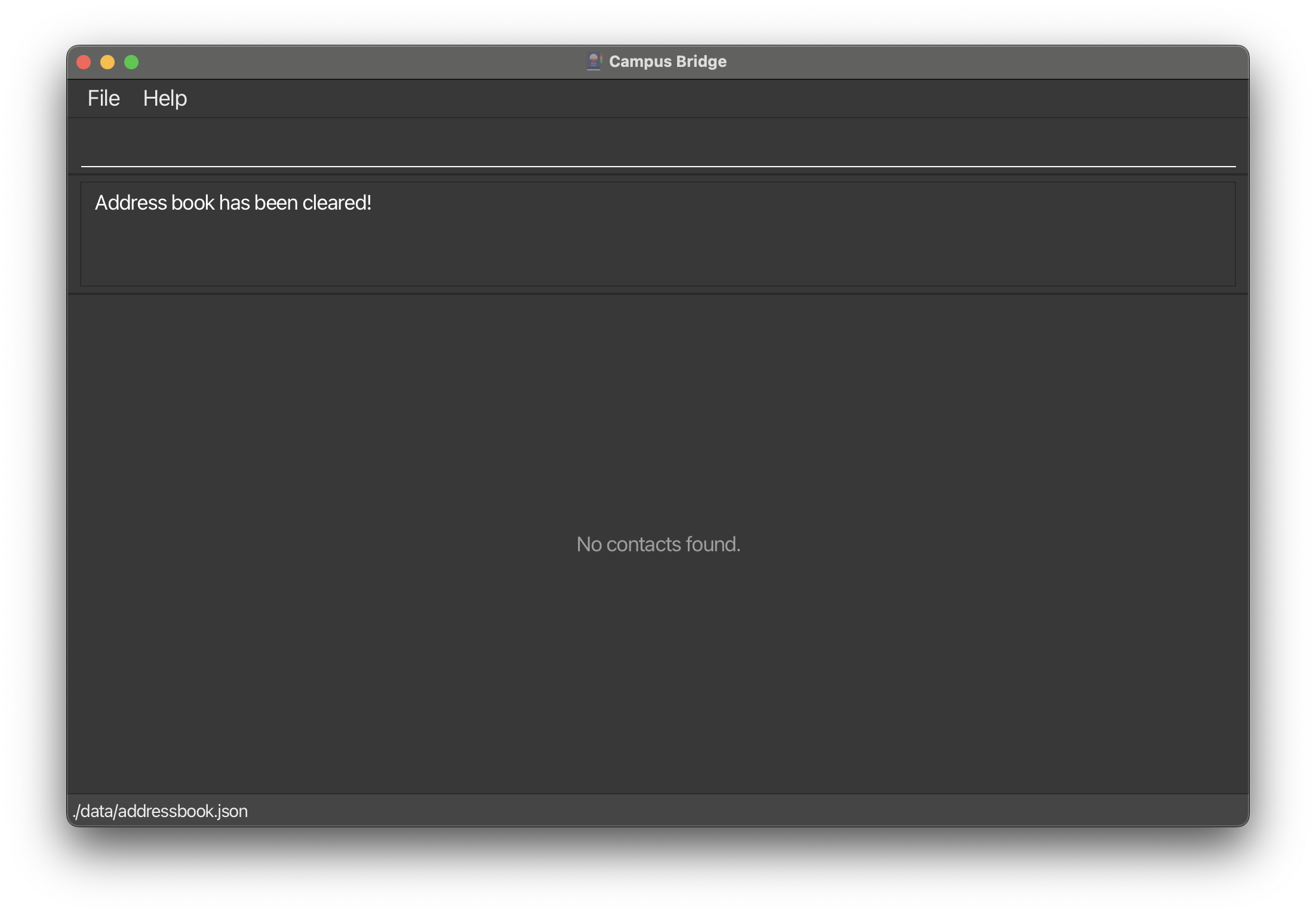
Clears all entries from the address book.
Format: clear
-
clearkeeps the current filtered view unchanged.
Exiting the program : exit
Exits the program.
Format: exit
Alternatively, press F3 or fn + F3 to exit the application.
Navigating command history
Previously entered commands can be recalled using the keyboard.
- Press the Up arrow key to go back to an earlier command.
- Press the Down arrow key to go forward to a more recent command.
Examples:
- After running
add n/John Doe e/john@example.com, press Up to recall it and modify it. - After running several commands, press Up repeatedly to scroll back through them.
Saving the data
CampusBridge data are saved in the hard disk automatically after any valid command is executed. There is no need to save manually.
Editing the data file
CampusBridge data are saved automatically as a JSON file [JAR file location]/data/addressbook.json. Advanced users are welcome to update data directly by editing that data file.
Caution:
If your changes to the data file makes its format invalid, CampusBridge will discard all data and start with an empty data file at the next run. Hence, it is recommended to take a backup of the file before editing it.Furthermore, certain edits can cause CampusBridge to behave in unexpected ways (e.g., if a value entered is outside of the acceptable range). Therefore, edit the data file only if you are confident that you can update it correctly.
FAQ
Q: How do I transfer my data to another Computer?
A: Install the app in the other computer and overwrite the empty data file it creates with the file that contains the data of your previous CampusBridge home folder.
Q: What happens to my data when I upgrade from v1.3 to v1.4 (or a later version)?
A: CampusBridge v1.4 and later uses an updated storage format that may not be compatible with older versions. If your existing data cannot be read, the app will start with an empty data file. Back up your data/addressbook.json before upgrading.
Known issues
-
When using multiple screens, if you move the application to a secondary screen, and later switch to using only the primary screen, the GUI will open off-screen. The remedy is to delete the
preferences.jsonfile created by the application before running the application again.
Coming soon [in v2.0]
- Clear multiple tag types at once — Allow cleartag to accept multiple tag type prefixes in a single command.
- Clear all tags at once - Allow cleartag to clear all tags of a specific person in one short command.
- Edit tags — Support modifying existing tags directly.
- Find by other fields — Extend find to search by Telegram handle and other fields beyond name.
- Unknown command suggestions — Use fuzzy matching to suggest the closest valid command when a typo is entered (e.g. “Did you mean cleartag?”).
- Fuzzy matching for emails — Detect near-duplicate emails by fuzzy matching the local and domain parts separately.
- Redo command — Add a redo command to complement undo.
Command summary
| Action | Format, Examples |
|---|---|
| Add |
add n/NAME e/EMAIL [p/PHONE_NUMBER] [h/TELEGRAM_HANDLE] e.g., add n/James Ho e/jamesho@example.com p/22224444 h/james_ho
|
| Clear | clear |
| Cleartag |
cleartag INDEX tr/ or cleartag INDEX tc/ or cleartag INDEX tg/ e.g., cleartag 1 tg/
|
| Delete |
delete INDEXe.g., delete 3
|
| Edit |
edit INDEX [n/NAME] [p/PHONE_NUMBER] [e/EMAIL] [h/TELEGRAM_HANDLE]e.g., edit 2 n/James Lee e/jameslee@example.com h/jlee01
|
| Exit | exit |
| Find |
find [n/NAME [MORE_NAMES]] [e/EMAIL [MORE_EMAILS]] [t/TAG [MORE_TAGS]]e.g., find n/alex e/gmail t/friends
|
| Help |
help [COMMAND]e.g., help, help add, help sort
|
| List | list |
| Sort |
sort o/ORDER [r/]e.g., sort o/name, sort o/email r/, sort o/none
|
| Tag |
tag INDEX [tr/ROLE_TAG]… [tc/COURSE_TAG]… [tg/GENERAL_TAG]…e.g., tag 1 tg/friends tc/cs2103
|
| Undo | undo |
| Untag |
untag INDEX [tr/ROLE_TAG]… [tc/COURSE_TAG]… [tg/GENERAL_TAG]…e.g., untag 3 tr/tutor tc/cs2103
|
Keyboard shortcuts summary
Windows / Linux
| Action | Shortcut |
|---|---|
| Clear input box | Delete |
| Exit application |
F3 or fn + F3
|
| Help |
F1 or fn + F1
|
| List all contacts |
F2 or fn + F2
|
Note: On some keyboards, you may need to press fn together with the function key (for example, fn + F1) to trigger the shortcut.
macOS
| Action | Shortcut |
|---|---|
| Clear input box | fn + Delete |
| Exit application | fn + F3 |
| Help | fn + F1 |
| List all contacts | fn + F2 |